
Before exploring send emails from your SMTP provider, read the overview of sending emails from your domain. NeetoCal supports sending emails at the workspace and host levels.
You can set this up at two levels.
Workspace-level applies to all hosts in the workspace by default.
Host-level applies only to scheduling links where you are the host.
If you already use an email service that provides SMTP access (such as Zoho Mail, Amazon SES, SendGrid, Mailgun, or your company mail server), you can configure NeetoCal to send emails through your SMTP provider instead. This ensures emails are sent from your own domain and improves brand consistency.
Once connected, all emails for scheduling links where you are the host will be sent using your SMTP provider. Emails for scheduling links hosted by other team members will continue to be sent from [email protected].
Go to Host → Self
Click Email delivery
Select SMTP
Click Connect SMTP
Enter SMTP details
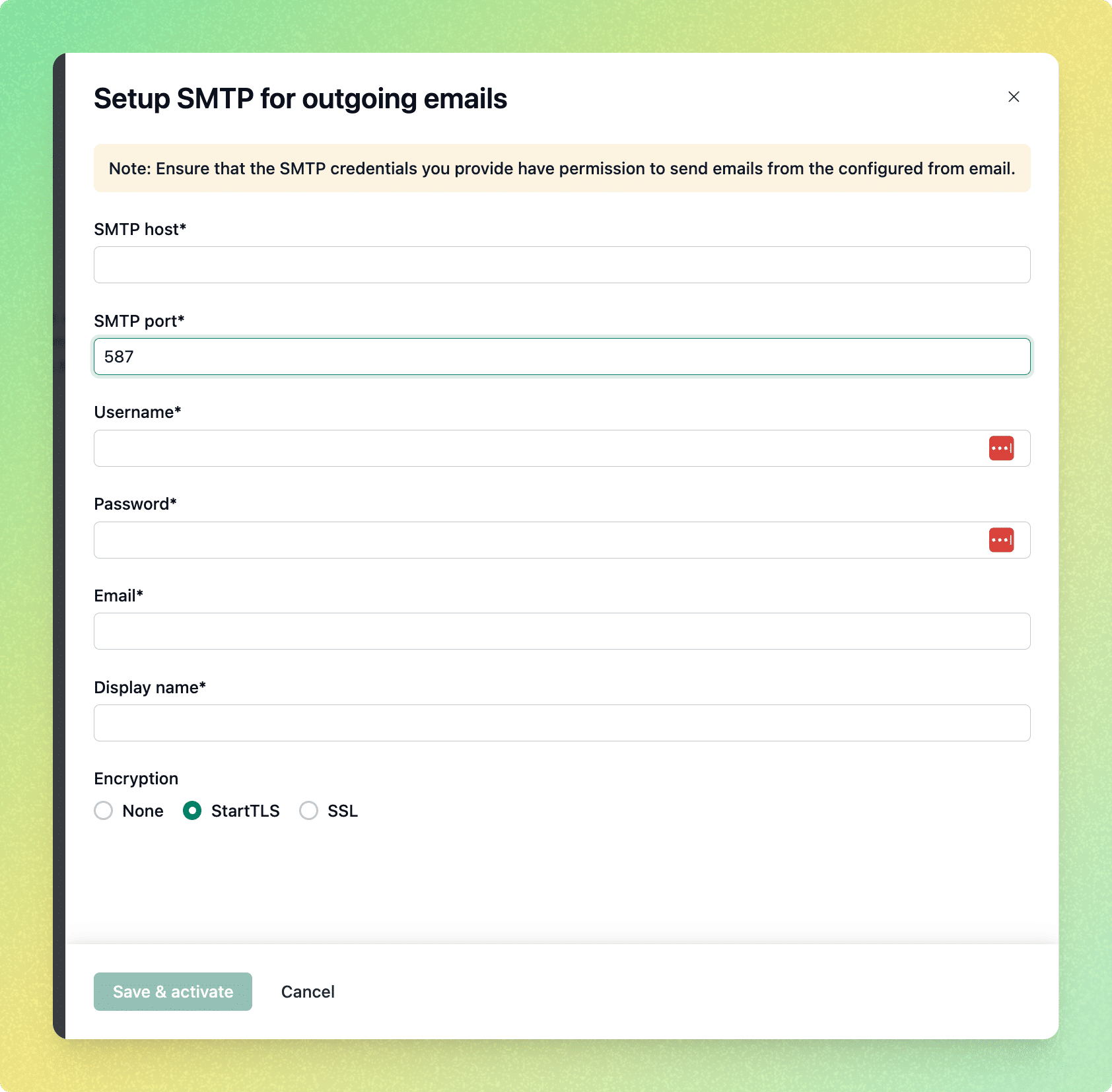
A pane will appear asking for the following information:
1. SMTP host
Enter the hostname provided by your email service
Example: smtp.yourdomain.com
2. SMTP port
Enter the port used by your SMTP provider
Common values:
587(recommended for StartTLS)465(for SSL)
3. Username
Enter the SMTP username provided by your email service
(This is often your email address or a generated SMTP user)
4. Password
Enter the SMTP password or app-specific password associated with the username.
5. Email
Enter the email address you want to use as the sender
Example: [email protected]
Make sure the SMTP credentials have permission to send emails from this address.
6.Display name
Enter the sender name that clients will see in their inbox.
Example: Acme Support Team
7. Encryption
Choose the encryption method supported by your provider:
StartTLS (recommended)
SSL
None (not recommended unless required)
Save and activate
Click Save & activate.
NeetoCal will validate the SMTP connection.
If successful, your SMTP provider will be activated for outgoing emails.
What happens after SMTP is connected
All future emails for scheduling links hosted by you will be sent using your SMTP provider.
Emails will be sent from the email address and display name you configured.
Scheduling links hosted by other team members will continue to use their own email delivery settings or default email i.e [email protected].
Important notes
Ensure your SMTP provider allows third-party applications to send emails.
Some providers require app-specific passwords instead of your main account password.
If emails fail to send, double-check the SMTP host, port, encryption type, and credentials.