
For recurring meetings that are pre-booked but not yet charged, you can change the payment method. This allows you to choose which method will be charged for those pre-booked sessions.
We use Stripe's secure Customer Portal to make managing your payment methods easy and secure.
Whether you need to update a card, remove an old one, or add a new payment option, you can do it directly through the Stripe Customer Portal. All changes automatically sync back to Neeto, requiring no manual updates from our side.
Customer Portal Demo
You can explore how the Stripe Customer Portal works here.
How to Log In to the Stripe Customer Portal
Open your booking details page in Neeto and click Manage payment method.
-
You will be redirected to the Stripe customer portal login page.
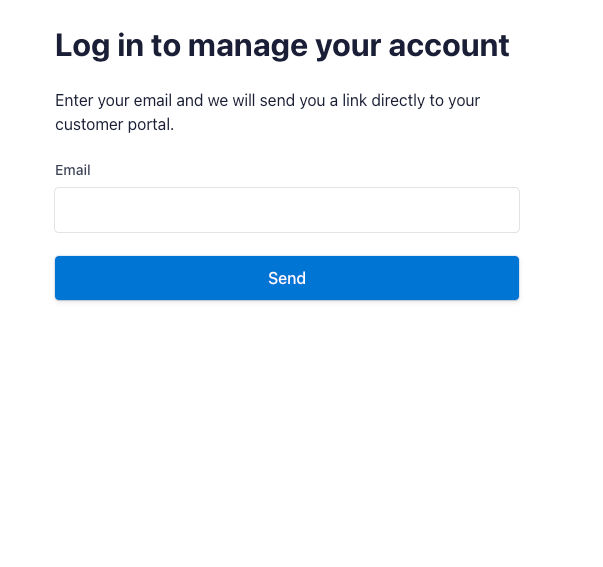
Enter the same email address you used when booking your meeting.
-
Stripe will send you an email containing a secure login link. Open the email and click the link to continue.

After logging in, you will be taken to your customer portal dashboard, where you can view all the payment methods you have used while paying through Neeto.
In the portal, you can add, update, or remove payment methods. Any changes you make in Stripe are automatically synced back to Neeto.
Add a payment method
Log in to the Stripe customer portal as mentioned above.
Click on the Add payment method button in the customer portal.
Enter your card details and click Add to save the new payment method.
Delete a payment method
Log in to the Stripe customer portal.
To delete a card, click the X icon next to it or click the three dots (⋯) and choose Delete.
Set a default payment method
The default payment method is the card Stripe and Neeto will automatically use for all upcoming payments, including recurring charges.
Log in to the Stripe customer portal
Click the three dots (⋯) next to the card you want to set as default.
Select Make default.