
Sometimes, you may notice that certain slots on your scheduling link page do not appear, even though you believe you are free and it should be available to book. This guide will help you understand the possible reasons and walk you through the steps to identify and fix the issue.
There can be two possible reasons for this:
You expect slots to appear because you believe you are available, but they are not showing as expected. This may be due to your availability, overrides, or timezone. In this case, first perform initial checks to verify your basic settings are in place.
You are sure that the slots fall within your configured availability, but some specific time slots are blocked, then you should use the Troubleshooting feature to find the exact reason.
Troubleshoot your slots
The troubleshooting feature shows you the exact reason for an unavailable slot.
It automatically checks your availability settings, overrides, lead time, buffer time, booking limits, holidays, overlapping calendar events, and double booking rules and then displays the precise reason why any slot is unavailable.
Option 1: From your booking page
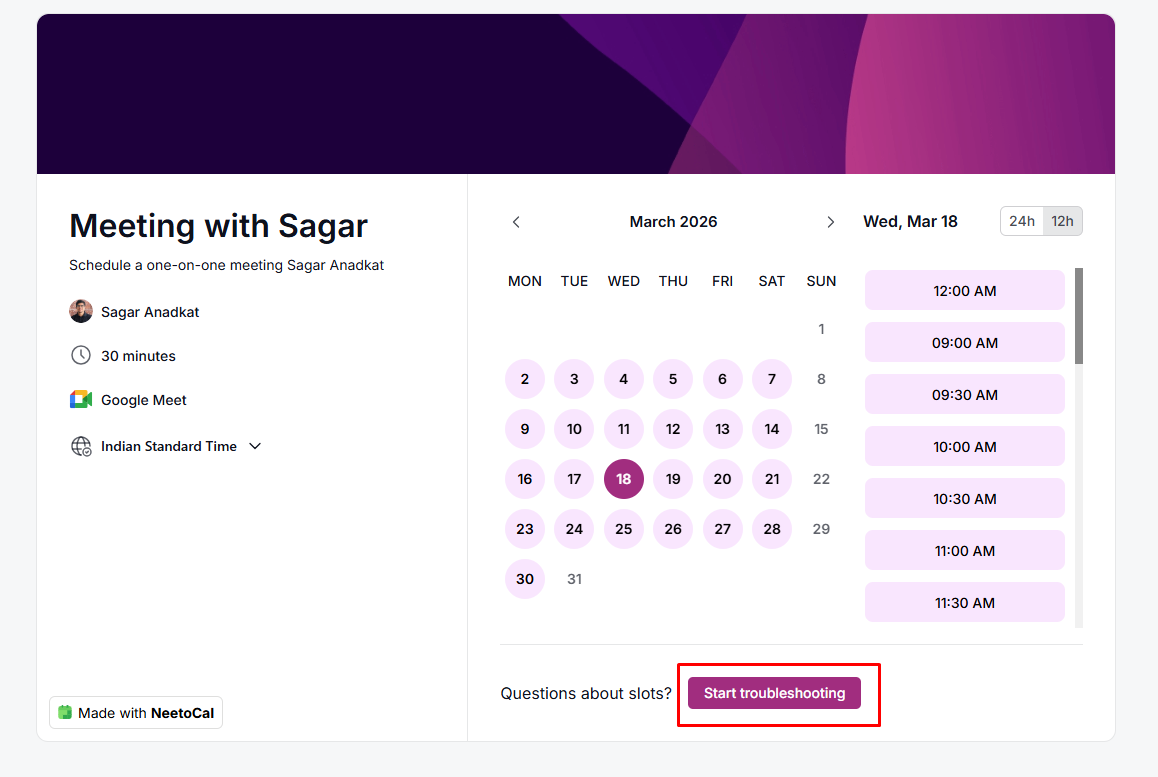
Visit your scheduling link.
Click on the Start troubleshooting button given below slot listing calendar.
Select the date when the slot is not available.
Scroll to the slot that appears unavailable on the public page.
Hover over that slot.
-
You will see the exact reason why it is blocked, such as: Overlapping calendar event, Lead time restriction, Buffer time, Booking limit reached, etc.
Once you know the reason, you can go to the relevant setting and fix the issue.
Option 2: Direct link access
You can jump straight to troubleshoot view by adding /troubleshoot to the end of any scheduling URL.
Example:
Scheduling link:
yourbusiness.neetocal.com/meetTroubleshooting link:
yourbusiness.neetocal.com/meet/troubleshoot
Some common reasons for unavailable slots & how to fix them
1. Overlapping booking (calendar conflict)
NeetoCal checks all the calendars that you have marked for double booking prevention. If any event in those selected calendars has an overlapping time with your available slot and is marked as busy, that slot will not be shown on your booking page.
How to fix:
Open your connected calendar (Google/Outlook).
Locate the overlapping event.
If appropriate, change the event status from Busy to Free.
Save the event.
Refresh your booking page.
It will show those slots as available on your scheduling page after fixing this.
2. Lead time restriction
Lead time controls how far in advance clients can book meetings. If any meeting time falls under the limit of lead time, then those slot will not appear on your booking page.
How to fix
Open the Scheduling link in NeetoCal.
Go to Where tab → Lead time.
Adjust the lead time as needed.
Save changes.
Refresh your booking page.
3. Buffer time conflict
Buffer time is extra time set aside before or after each meeting. If someone already booked the meeting, the other available meeting slots will become unavailable as per buffer time setting.
How to fix
Go to Self → Availability.
Open the availability used for the meeting.
Locate the Buffer time setting.
Adjust or reduce the buffer if needed.
Save changes.
Refresh your booking page.
4. Booking limit reached
Booking limit allows you to control how many bookings are allowed for a scheduling link.
You can set limits on the scheduling link level to restrict:
Number of meetings per day
Number of meetings per week
Number of meetings per month
Total number of meetings
If any of these limits are reached, the remaining slots will automatically appear unavailable.
For example:
If you allow only 3 meetings per day and 3 bookings are already confirmed, all other slots for that day will be blocked.
If the total booking limit is reached, the scheduling link will stop accepting new bookings entirely.
How to fix
Open the meeting.
Go to Settings → Limits.
Increase or remove the daily limit.
Save changes.
Refresh your booking page.
5. Holiday marked in NeetoCal
If a day is marked as a holiday in NeetoCal, slots will become unavailable for that day.
How to check
Go to Admin Panel.
Click on Holidays.
Verify whether the affected date is marked as a holiday.
Remove or update the holiday if required.
If troubleshooting shows something like:
“Oliver Smith is unavailable because it’s a holiday,” then the date has been marked as a holiday in NeetoCal.
Initial checks to perform to ensure basic settings are correct
To investigate slot-level conflicts, make sure these basic settings are correct.
1. Ensure your availability set up is correct
If your availability is not configured properly, slots may not appear as expected.
What to check
Go to Self → Availability.
Open the availability linked to your meeting.
-
Ensure:
The correct days are enabled.
The correct time ranges are added.
There are no missing time gaps.
If any day or time is not included in your availability, the slot will automatically appear unavailable.
2. Ensure correct availability is selected for that scheduling link
If the meeting is linked to a different availability than what you are expecting, then slots may not appear as per your expectations.
What to check
Open the Scheduling link.
Go to the Host tab.
Confirm that the correct availability is selected for the respective host.
Verify that the time range you are expecting is included.
If not, then click on edit and choose the availability that matches your expectation. If that's not available, you can update the existing availability or create a new custom availability and select that for that specific scheduling link.
3. Check if any availability overrides are applied
Availability override allows you to change your default availability for a specific date.
If an override is set incorrectly, it may block slots even though your regular availability shows you are free.
What to check
Open the availability.
Review the overrides for the affected date.
Update or remove the override if needed.
Save changes and refresh the page.
4. Ensure your timezone is correct
Make sure your timezone is correct. If your timezone is incorrect, slots may be blocked because the system calculates availability based on the selected timezone.
What to check
Go to My profile by clicking on your picture in the bottom-left corner.
The right side pane will appear and show your current timezone.
If that's not correct, click on triple dot.
Click on Edit basic info.
Choose the time zone from the Select time zone dropdown.
Save changes and refresh your scheduling page.