
Dynamic variables are values that change based on the meeting, client, or other details. For example, to include both the host's and client's names in a calendar event, set the meeting name to {{host.name}} and {{client.name}}.
Finding available variables
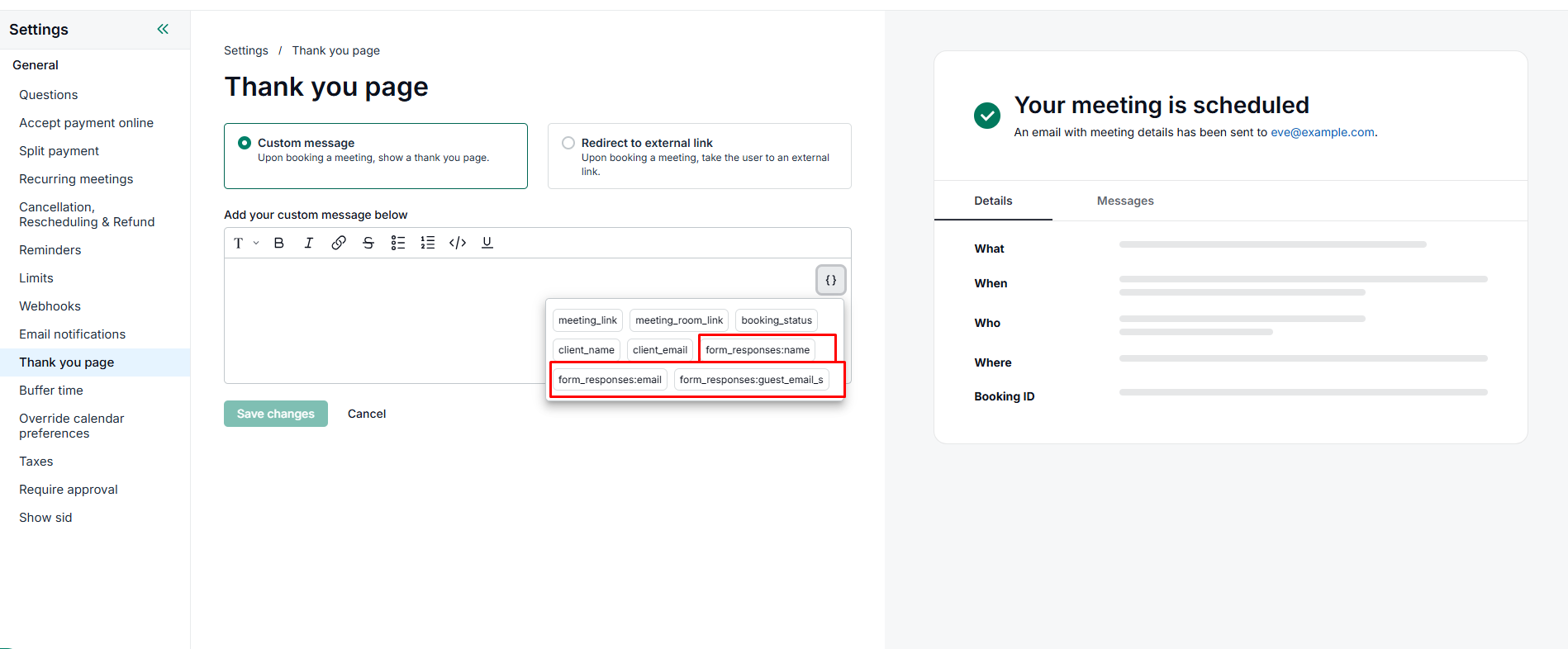
You don't need to remember variable names or refer to a separate list. Any field that supports dynamic variables has a { } icon. You'll find it in the toolbar of the message editor and on the right side of the subject field.
Click the icon to see all available variables, grouped by category, and select one to insert it.
The available variables depend on the template you're editing. For example, cancellation emails include a cancellation reason, and booking form questions appear under Form responses.
Variables for group meetings
Group meeting links have a Spots booked variable under Booking. It shows how many spots the customer booked. On links with category pricing, it lists each category with its count instead, such as Adult × 2, Child × 1. You can use it in the scheduling link's emails and in its reminder emails and SMS. One-on-one links don't have this variable, and group meeting links don't offer form responses as variables.
Using form responses in dynamic variables
You can use form responses as dynamic variables in email subjects, email messages, and the thank-you page.