

To integrate Microsoft Teams with NeetoCal, you will need a Microsoft school or work account. Personal accounts cannot be used for integration.
Note that the MS Teams integration is a video conferencing integration, not a calendar integration. This means that NeetoCal allows you to utilize MS Teams as your video conferencing platform for meetings, but it does not automatically add these meetings to your MS Teams calendar or your Outlook calendar.
Go to Host (Self) tab.
Click on Microsoft Teams card.
Click on Connect Microsoft Teams.
You will be taken to the Microsoft 365 authentication page and asked to log in to Microsoft 365.
After successful login, you will be taken back to NeetoCal.
Visit your scheduling link page.
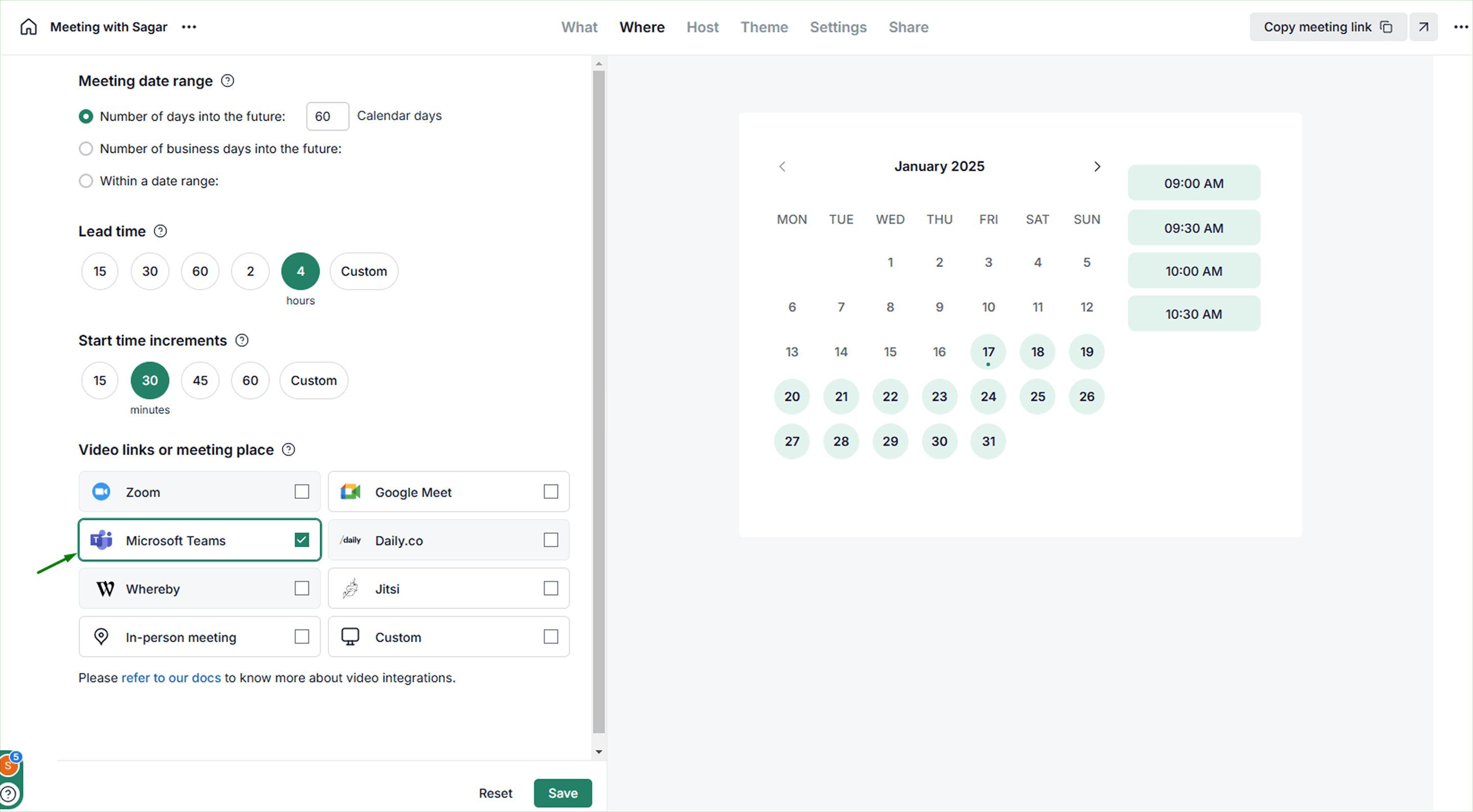
Select Microsoft Teams in Where tab in your scheduling link.
Click on Save button.
Recording and transcribing meetings automatically
NeetoCal can set up the Teams meetings for a scheduling link so that Teams starts recording and transcribing as soon as each meeting starts. You can also choose the language that'll be spoken in the meeting, which Teams uses for the recording and transcript.
Open your scheduling link.
Go to the Where tab.
Select Microsoft Teams.
Under Microsoft Teams meeting options, select Record and transcribe automatically.
In Language spoken in the meeting, choose the language people will speak.
Click Save.
Teams records the meeting as well as transcribing it. Microsoft doesn't let NeetoCal turn on transcription without recording. If you only want a transcript, leave this option off and start transcription from the meeting controls in Teams.
If you don't choose a language, Teams uses its default language.
Teams saves the recording and transcript the same way as any other Teams recording. They're linked in the meeting chat and stored in the host's OneDrive.
What your Teams admin needs to allow
Teams only records and transcribes meetings when your organization's Teams admin allows it. If your meetings don't start recording, ask your Teams admin to check that Meeting recording and Transcription are turned on in the meeting policy assigned to you. You'll find both settings in the Teams admin center under Meetings > Meeting policies.
Microsoft explains these settings in Manage Teams recording policies and Manage transcription and captions for Teams meetings.
Why can't a personal Microsoft account be used to integrate MS Teams with NeetoCal?
If you are using a Microsoft work or school account and have attempted to create a calendar event in Outlook, you will see a switch to create an MS Teams meeting.

The Outlook add-in doesn't support creating meetings when using a personal account.
Free Exchange accounts, including @outlook.com, @msn.com, and @hotmail.com, and POP/IMAP accounts, like @gmail.com, @yahoo.com, @icloud.com, and similar providers, aren't supported to generate MS teams video call link.
This is the reason why you need either a school or work account to work on MS Teams integration.
How can I check if my Microsoft account is personal or work
Refer to this help article to know how to check whether your microsoft account is personal or work. https://learn.microsoft.com/en-us/answers/questions/2345762/how-can-i-check-if-my-microsoft-account-is-persona