

The root URL decides which page opens at your workspace's home address, for example https://your-subdomain.neetocal.com. You can set any scheduling link, intro page, package, or routing form as the root URL, and that page shows at the home address.
Every page also has its own address, for example https://your-subdomain.neetocal.com/discovery-call. Setting a page as the root URL never changes any page's own address; whichever page is the root, every other page stays reachable at its own link. Only one page can be the root URL at a time.
When a workspace is created, the Homepage intro page is the root URL. It also has its own address, https://your-subdomain.neetocal.com/homepage. The home address keeps showing the Homepage until you set another page as the root URL.
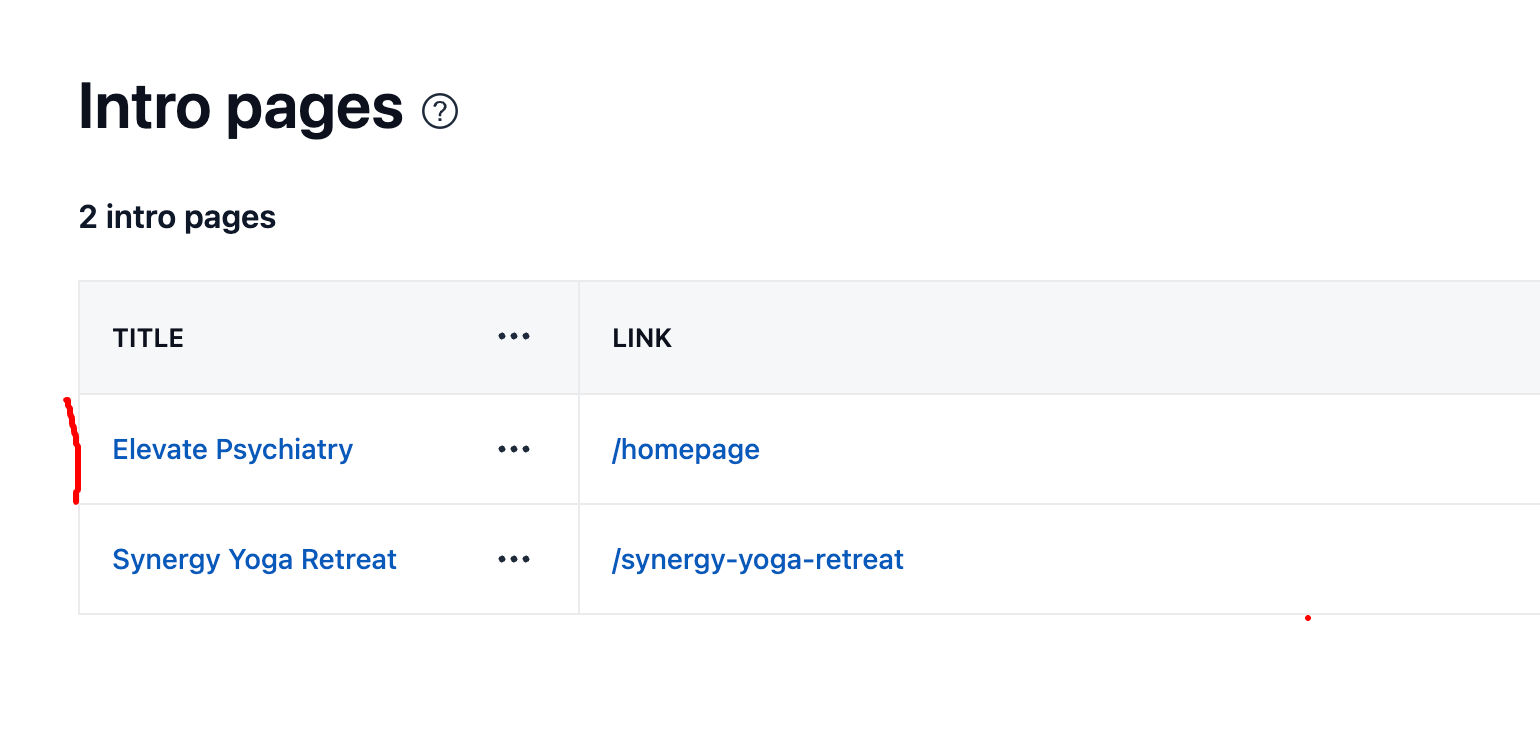
Setting a page as the root URL
The steps are the same for every page type. The checkbox sits below the URL field: on the What tab for scheduling links, on the edit screen for intro pages and packages, and on the build screen for routing forms.
Open the page you want to show at the home address.
Check Set as root URL below the URL field.
Click Save changes.
If another page is already the root URL, a confirmation shows which page it is. Click Replace root URL to confirm.
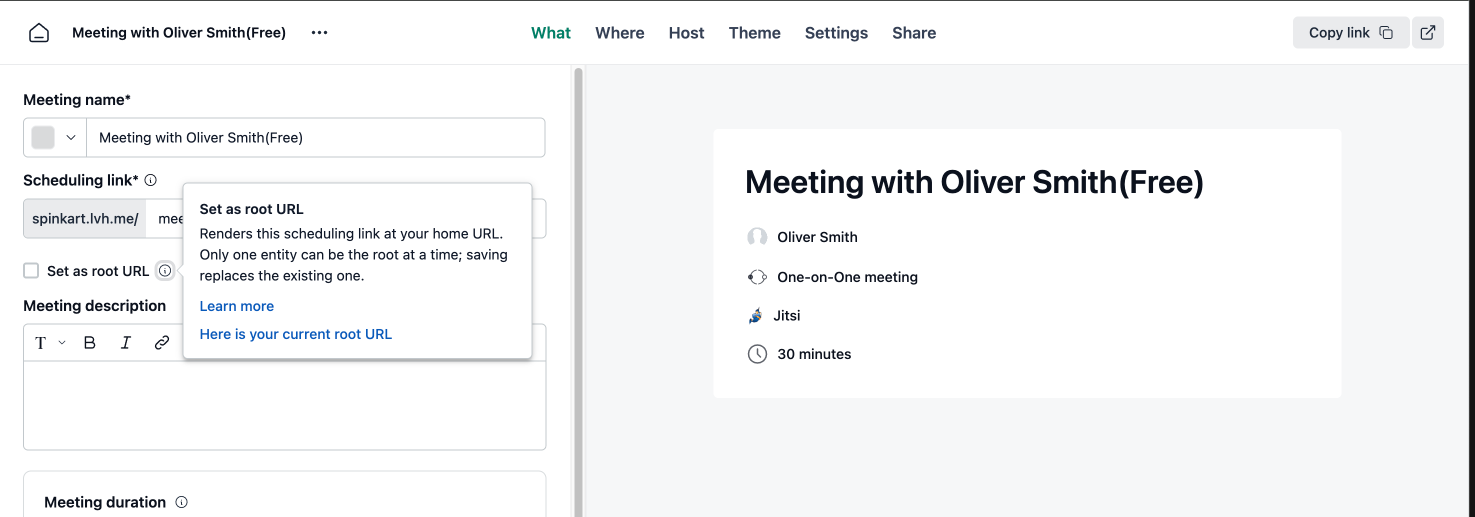
Hover over the info icon next to the checkbox for a short explanation and a link to your current root URL. A disabled page cannot be set as the root URL; enable it first.
Replacing the root URL
Setting a new root URL replaces the current one. Once you confirm, the new page shows at the home address and the previous page goes back to being available only at its own address.
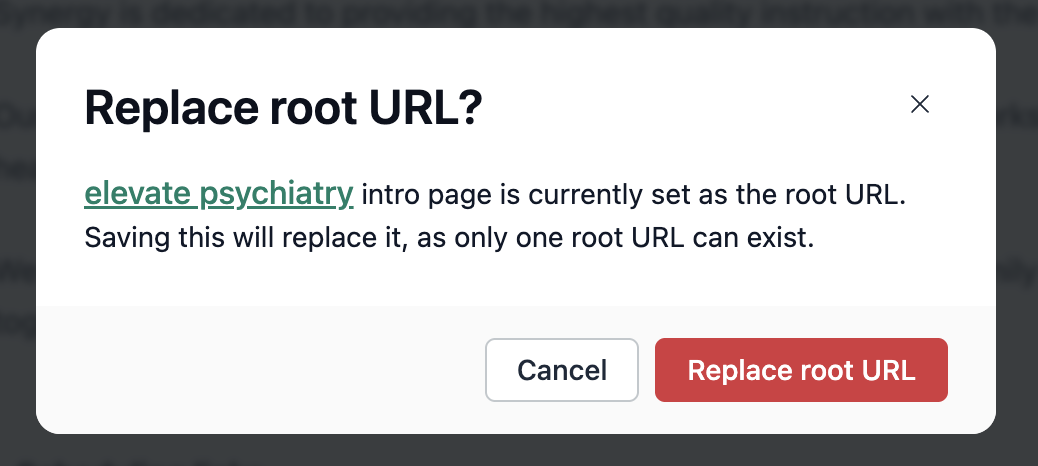
The root URL cannot be unset directly, so your workspace always has one. To change it, set a different page as the root URL, which replaces the current one.
Deleting or disabling the root URL page
The page currently set as the root URL cannot be deleted or disabled. Set a different page as the root URL first, then delete or disable the old one.