

Integrating Slack with NeetoCal ensures that you receive real-time notifications about your scheduled meetings directly in your Slack workspace. This helps keep your team informed and improves collaboration by eliminating the need to frequently check emails or dashboards.
Slack integration is supported at two levels in NeetoCal:
Admin panel level
Admin panel level integration allows you to send Slack notifications configured under automation rules across your workspace.Host level
Host level integration allows you to send Slack notifications for a specific scheduling link, where you are the host to any selected Slack channel.
Go to Host (Self) tab, if you wish to send Slack notifications only for your scheduling linka, and if you would like to configure through automation rule, then go to the admin panel.
Click on the Slack Integration then click on the Connect Slack.
Click on the Login to Slack button on the next page.
You will be redirected to a Slack connection page.
If you want to change the workspace, it can be changed in the top-right corner of the page.
After that, click Allow to grant the permissions needed for the Slack app.
On the next page, select the channel you want to receive your notifications from the drop-down menu and press Continue.
You have successfully connected your NeetoCal account with your Slack account and will be redirected to the integration page.
Connecting a private Slack channel
By default, only public channels from your workspace appear in the channel dropdown. To send NeetoCal notifications to a private channel, you need to add the NeetoCal app to that channel manually in Slack.
Complete the standard Slack integration steps above (Host (Self) → Slack → Connect Slack → Allow).
Open Slack and Go to the private channel where you want NeetoCal notifications to be delivered.
-
In the message box, type
/ addand select Add apps to this channel from the suggestions.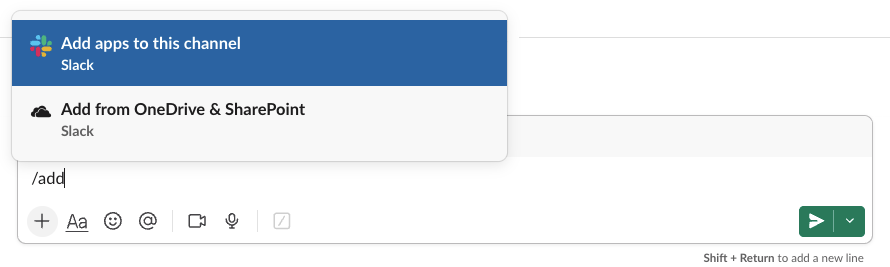
-
Find NeetoCal in the list and click Install.
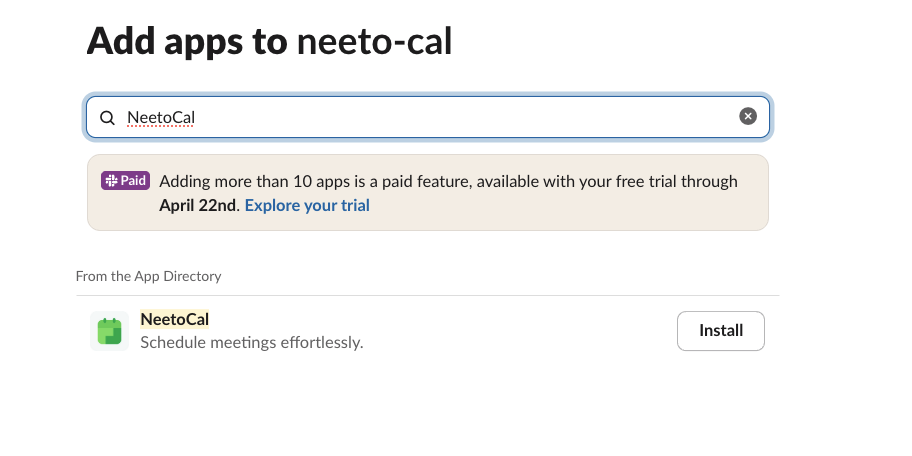
Return to the NeetoCal Slack integration screen and click the Refresh channels list button. Your private channel now appears in the dropdown, marked as private.
Select the private channel and click Continue.
Click on Done.
NeetoCal notifications will now be delivered to that private channel.