

Every business talks to its customers a little differently. The default labels, messages, and. prompts that NeetoCal shows may not always match your tone, your industry, or the language your clients speak.
Customize text lets you change the wording of almost any label, message, or piece of text that NeetoCal shows — both to the people who book with you and to your own team. You can fine-tune a single button label or rewrite a confirmation message, and your changes appear consistently across the product. You can also customize text separately for each language NeetoCal supports, so every client sees the right wording in their own language.
Customizing text
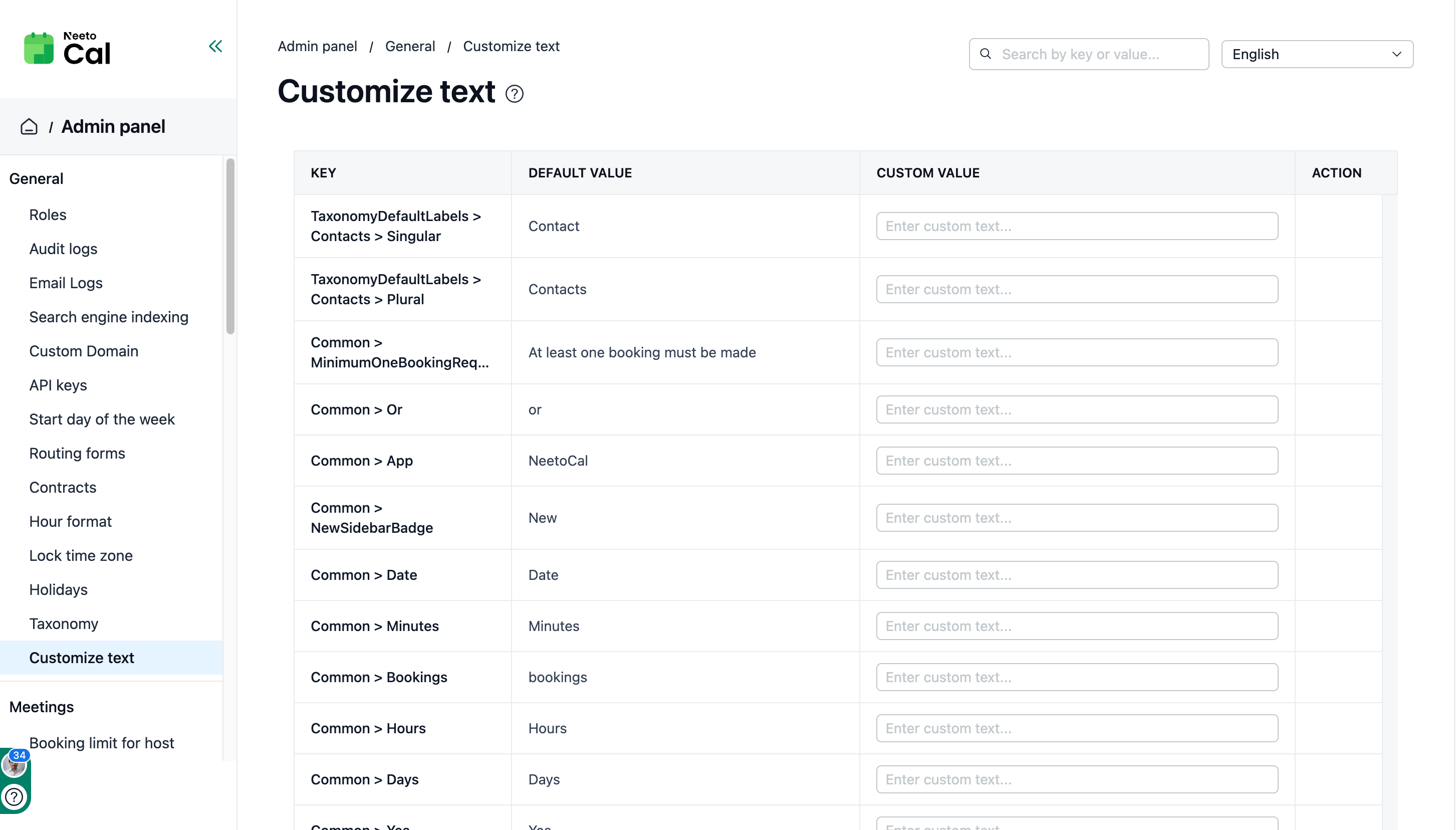
Go to Admin Panel.
In General, click on Customize text.
Use the language dropdown at the top right to select the language you want to customize. Each language has its own set of customizations.
Find the text you want to change. You can scroll through the list or use the search box to search by key or by the default wording.
Type your new wording in the Custom value column. Your changes are saved automatically, there's no separate save button.
A Modified tag appears next to any text you've changed, so you can easily spot your customizations.
Reviewing what you've changed
At the top of the page you'll see a count of how many texts you've modified for the selected language. Click it to filter the list down to only the texts you've customized, and click Show all to go back to the full list.
Resetting to the default
If you want to go back to the original wording, click the reset icon in the Action column next to a modified text. This removes your customization and restores NeetoCal's default value for that language.
A note on placeholders
Some texts contain placeholders wrapped in double curly braces, such as {{name}} or {{count}}. These are filled in automatically with real values (a client's name, a number, and so on). When you customize a text that has placeholders, keep them exactly as they appear so the final message still makes sense.
Can't find what you're looking for? Reach out to our support team and we'll be happy to help.