

Round-robin meetings automatically assign a host to each booking based on your chosen assignment method (balanced or priority-based). With the Allow clients to choose the host setting, clients can instead pick who they'd like to meet with before booking.
Enabling the setting
Go to your round-robin scheduling link and click the Host tab.
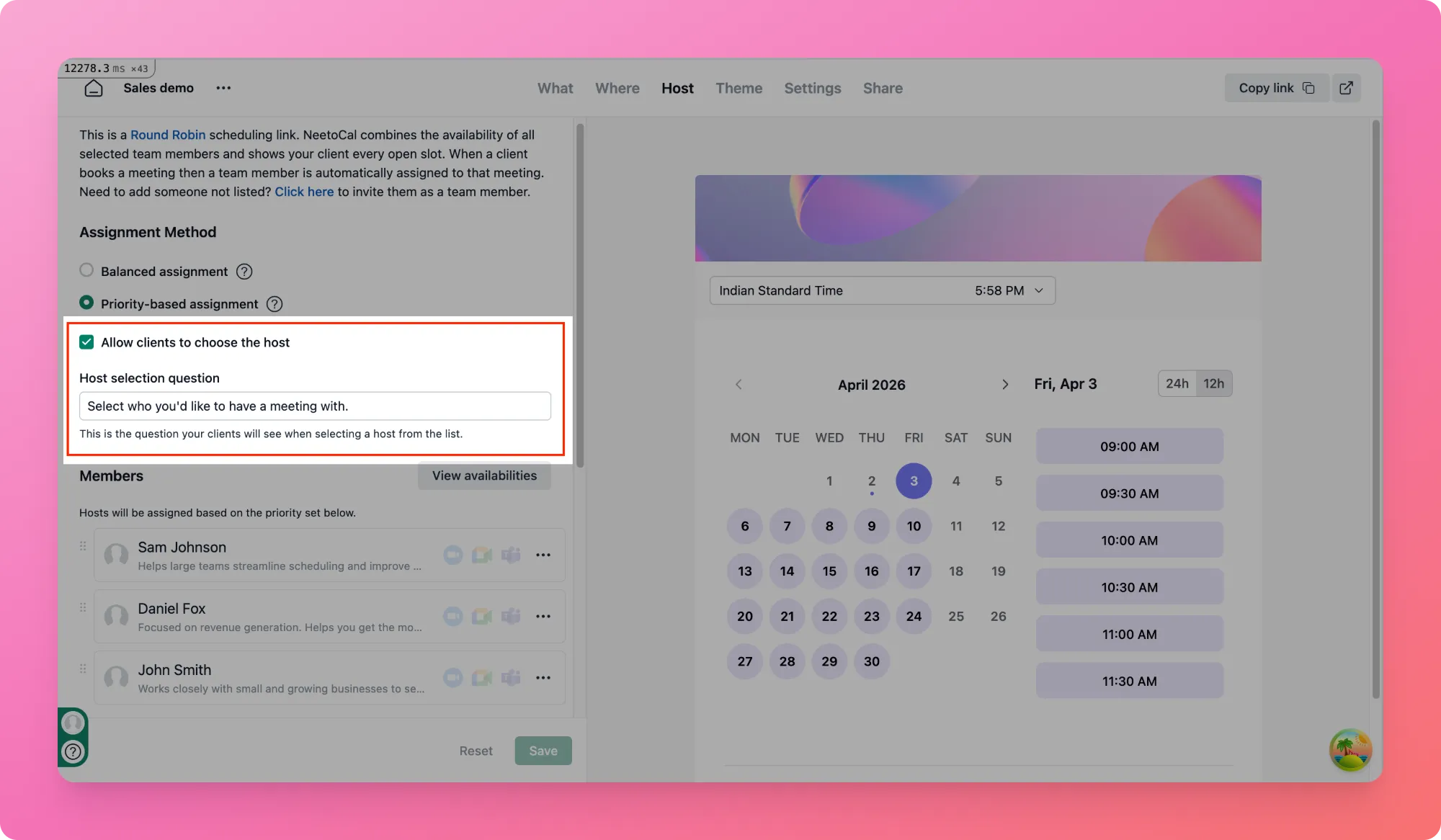
Under Assignment Method, check Allow clients to choose the host.
This setting needs at least two hosts on the scheduling link. With only one host, the checkbox is disabled.
Customizing the host selection question
Once enabled, a Host selection question field appears. This is the question your clients will see at the top of the host selection screen on your scheduling page. By default, it reads "Select who you'd like to have a meeting with."
You can customize it, for example:
Who would you like to speak with?
Choose your advisor.
Which therapist would you like to book with?
Adding host descriptions
You can add a short description for each host that appears below their name on the scheduling page. This helps clients understand each host's role or expertise.
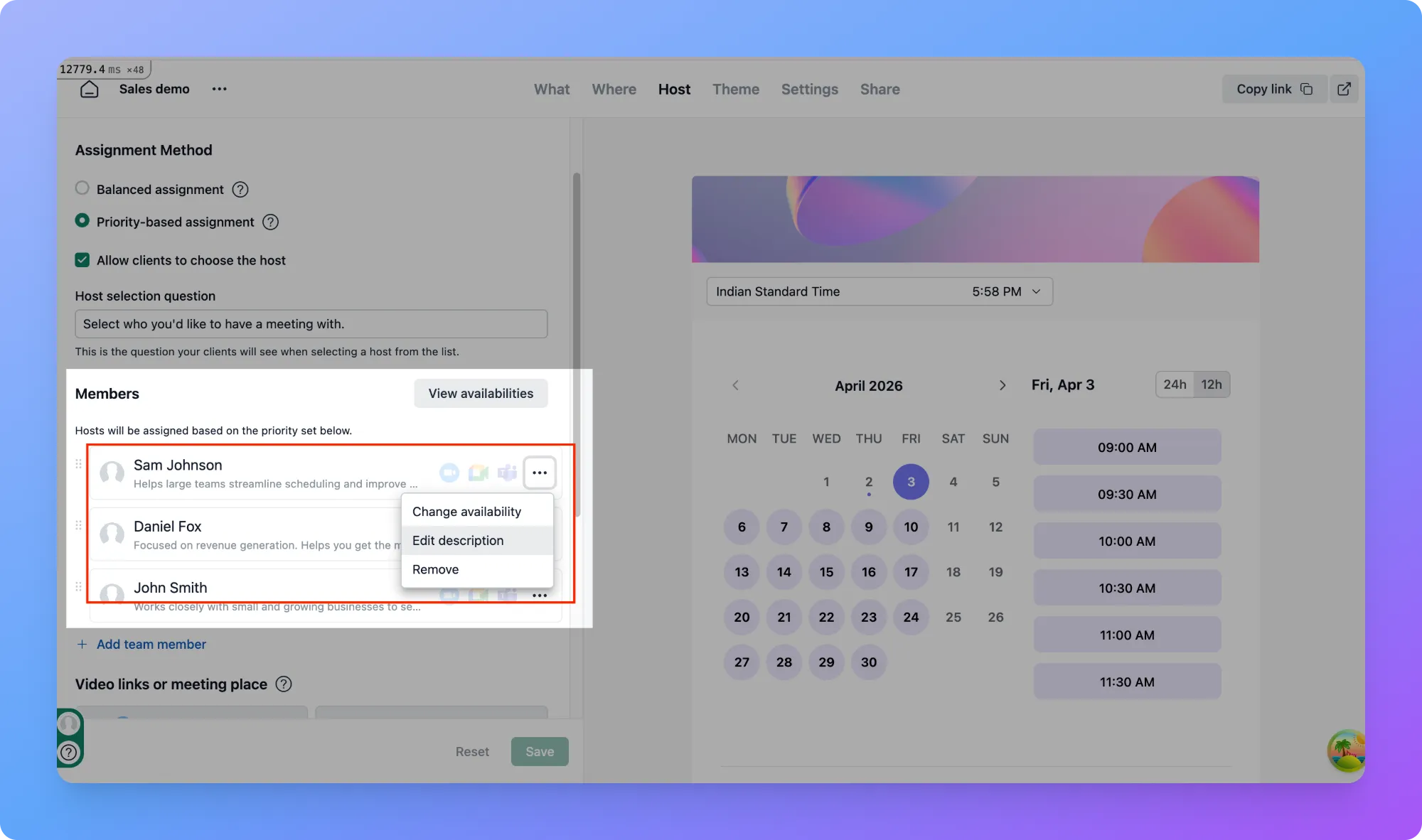
Click the ... menu next to the host's name.
Select Edit description.
Type a short description, for example "Senior account manager specializing in enterprise clients".
-
Click Save.
What your clients see
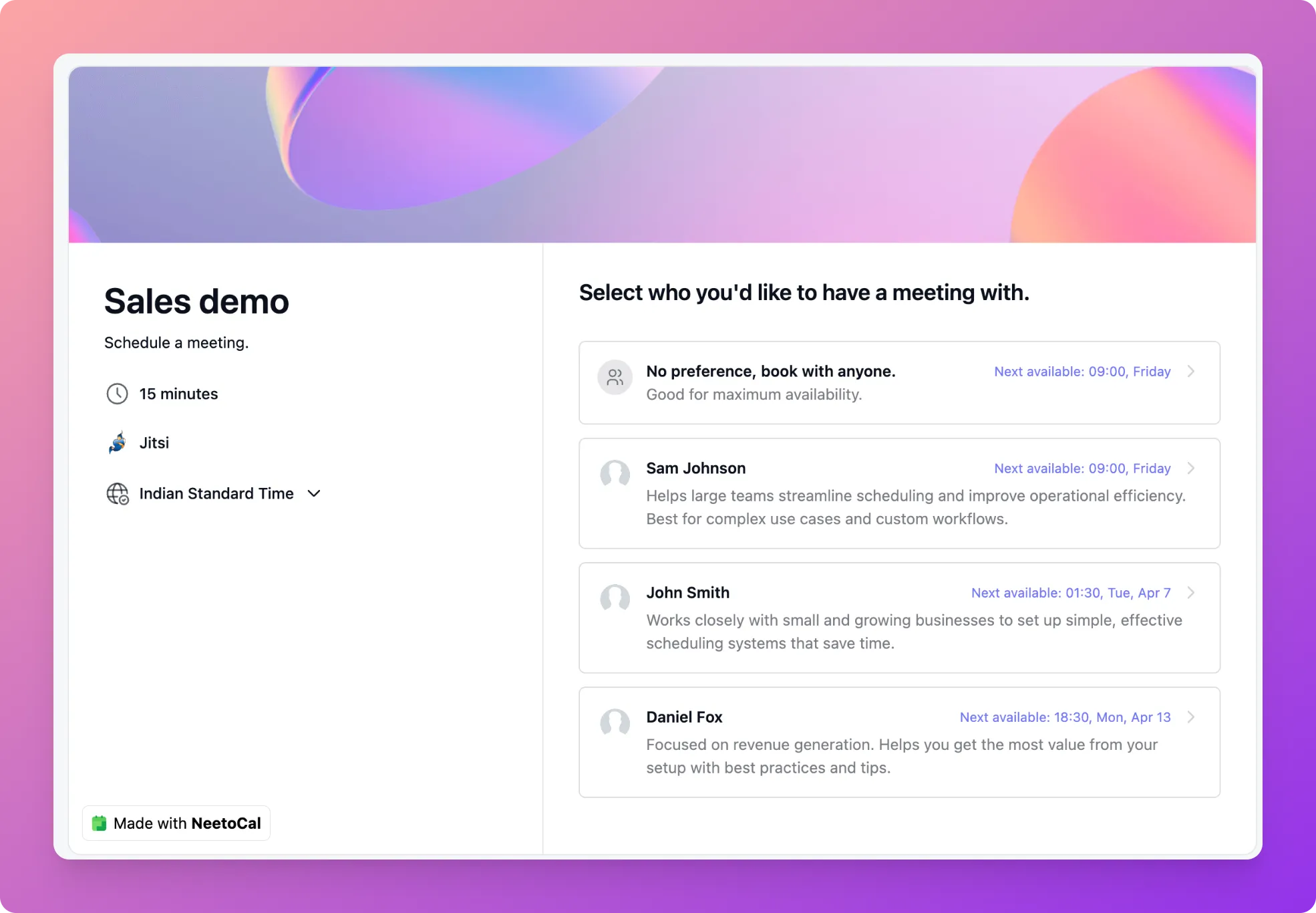
When a client opens your scheduling link, they see the host selection screen before the calendar. It shows your question at the top, a "No preference, book with anyone" option, and a card for each host with their name, description (if added), and next available time.
If the client picks a specific host, the calendar shows only that host's available slots and the booking is assigned to them. The host's name appears on the left panel of the booking page.
If the client picks "No preference", the calendar shows the combined availability of all hosts, and NeetoCal assigns the host automatically based on your assignment method.
Recurring bookings
When a client books a recurring meeting with a specific host, every occurrence is assigned to that host and checked against their availability. If the host is unavailable in a particular week, that slot is marked unavailable and the client can move it to another time.
With "No preference", each occurrence is assigned independently using your assignment method.
Rescheduling
When a client reschedules a booking made with a specific host, the calendar shows only that host's available slots and the booking stays with them. If that host has been removed from the scheduling link, or the setting has been turned off, NeetoCal falls back to standard round-robin behavior and shows availability from all hosts.