If you expect certain slots to be unavailable but they are appearing on your scheduling page, this guide will help you identify and fix the issue.
Before investigating deeper, make sure some basic settings are correctly configured.
Initial checks
You can fix the issue when slots appear available even though you expected them to be blocked. This usually happens because of incorrect availability, wrong time zone, calendar sync issues, or meetings not marked as “Busy.” In this article, we’ll guide you through the key checks to ensure your basic settings are correct and help you resolve the problem quickly.
1. Check your availability settings
If your availability includes the day and time range, NeetoCal will consider that time as open for booking. The system strictly follows the availability you have configured.
For example, if your availability is set from 9:00 AM to 5:00 PM on Monday, then all valid slots within that range will appear available unless another rule blocks them.
Make sure:
The correct days are enabled.
The time range does not accidentally include hours you intended to block.
There are no additional time ranges added by mistake.
To verify:
Go to scheduling link in NeetoCal where slot are appearing incorrectly.
Click on Host and check associated availability used for that scheduling link.
Review the configured days and time ranges carefully.
If the slot falls within your configured availability, it will appear available. If you wish to block any specific date and time than use Availability override feature or you can also update your existing availability as per your preference.
2. Re-sync your calendar
If you recently added, edited, or deleted an event in your connected calendar, NeetoCal may not yet have the updated information. Until the calendar syncs, the system may show slots as available.
For example, if you just created a meeting in Google Calendar, but it hasn’t synced yet, NeetoCal may still show that time as open.
To re-sync your calendar:
Click on Host (Self ) from the left side panel.
Click on Calendar integrations.
Click Manage Google Calendar (or your connected calendar).
Click on Sync your calendar.
Wait for 60 seconds.
Refresh your scheduling page and check if your slots are appearing properly or not.
3. Ensure your external calendar events are marked as “Busy”
NeetoCal blocks time only when calendar events are marked as Busy. If a meeting in your Google or Outlook calendar is marked as Free, NeetoCal will treat that time as available, even if an event exists.
For example, if you have a 2:00 PM meeting in Google Calendar but it is marked as “Free,” NeetoCal assumes you are available at 2:00 PM and will show that slot as open.
To verify:
Open the event in your calendar.
Check the availability status (Busy / Free).
If it is marked as Free, change it to Busy.
Save the event.
Refresh your scheduling page.
This is one of the most common reasons slots appear available unexpectedly.
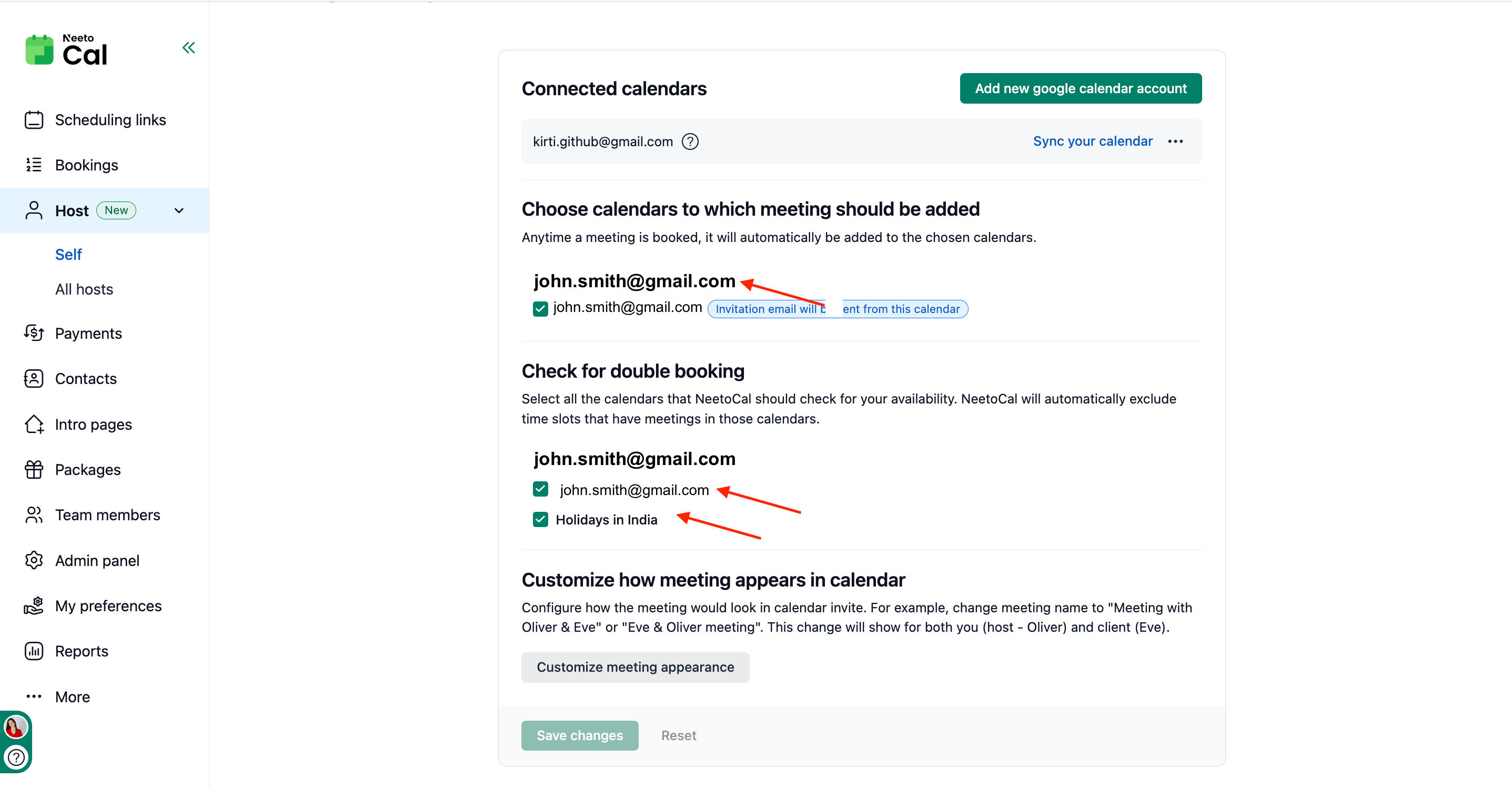
4. Ensure the correct calendar is selected for the double booking check
Even if your calendar is connected, NeetoCal will only block time from calendars that are selected fordouble booking check.
If your calendar is integrated but not selected under Check for double booking, the system will ignore events from that calendar and allow bookings during those times.
For example, if your Google Calendar is connected but not selected for double booking, NeetoCal will not block existing meetings from that calendar.
To verify:
Go to Host (Self) → Calendar integrations.
Click Manage Google Calendar (or your connected calendar).
Ensure your calendar is checked under Check for double booking.
If it is not selected, enable it and refresh your scheduling page.