If your email is not on Gmail or Outlook, you can still have booking emails come from your own address. NeetoCal sends them through its own email service and shows your domain as the sender, so customers see your address rather than a Neeto one. You need access to your domain's DNS settings to finish the setup.
Setting up your sending address
Go to Admin Panel > Email > Send emails from your domain.
Click Neeto email service.
Click Setup domain.
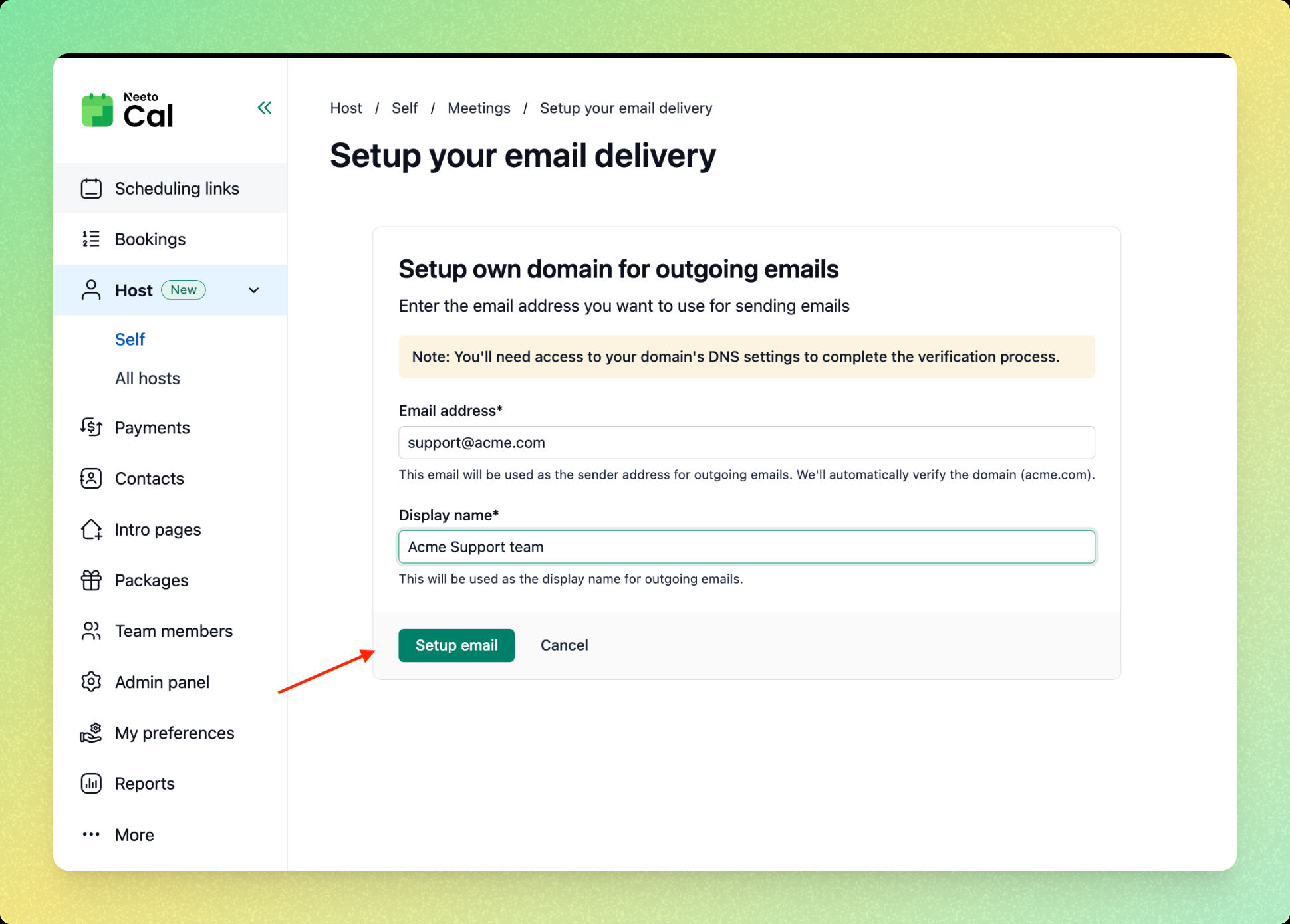
In Email address, enter the address you want emails sent from, for example
meetings@example.com.In Display name, enter the name customers see in their inbox.
-
Click Setup email.
DNS changes can take up to 48 hours to reach every provider. If verification does not succeed straight away, wait and click Verify domain again. Once the records are found, your domain is verified and your booking emails start sending from your own address.
Verifying your domain
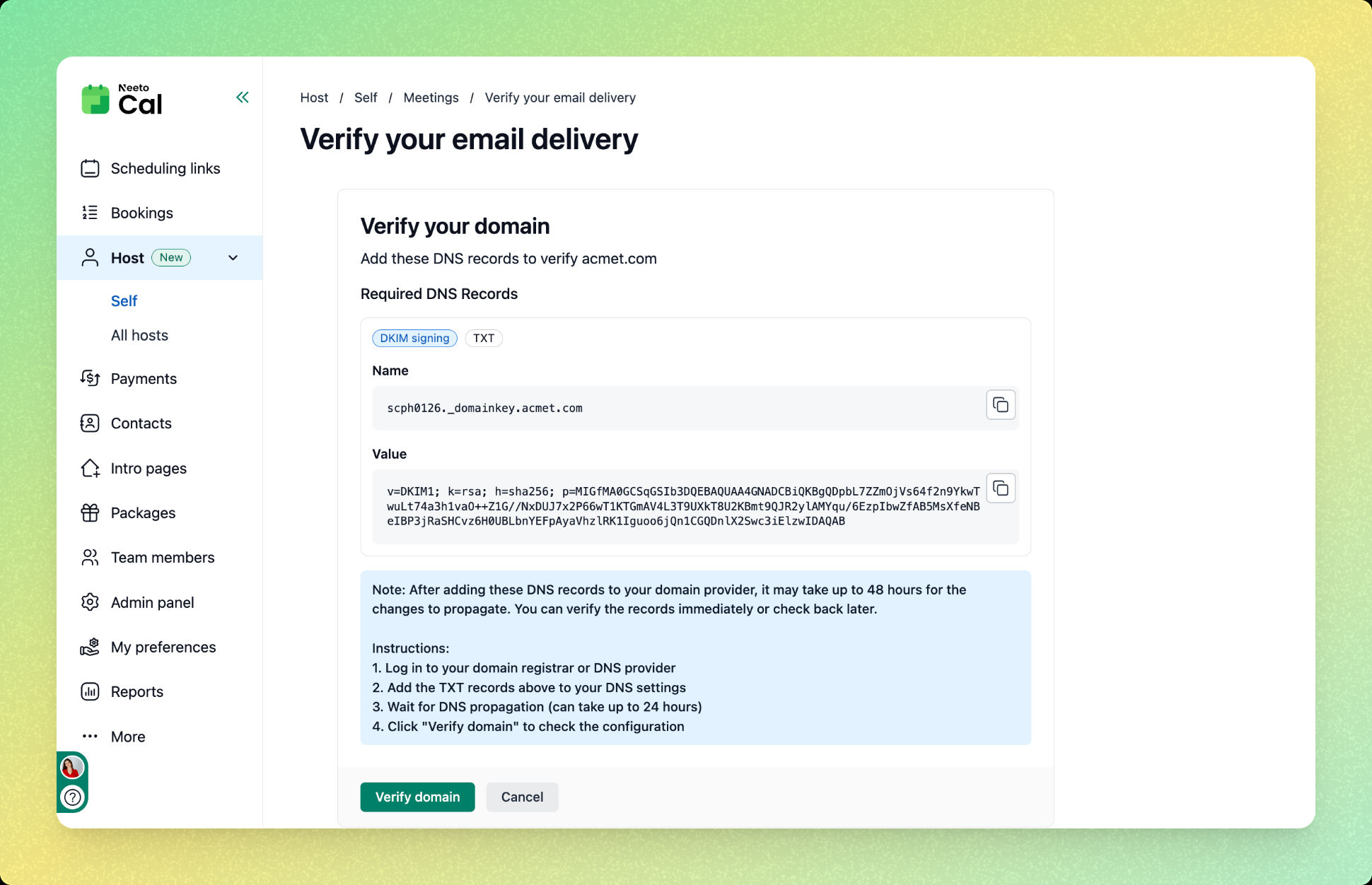
NeetoCal then shows the DNS records that prove you own the domain. Your emails keep sending as they do now until those records are added and verified.
Log in to your domain registrar or DNS provider.
Add each record shown on the Verify your domain screen, copying the Name and Value exactly.
Save the changes with your registrar.
-
Return to NeetoCal and click Verify domain.