

NeetoCal supports Google Analytics. Once connected, page views from your public scheduling pages flow to your Google Analytics property.
You can also send booking events, which report every step a client takes on the way to booking: the link being opened, a slot picked, details filled in, payment submitted and the booking completed. That is what shows you where clients drop off, and how much revenue each scheduling link brings in.
Connecting Google Analytics
Visit Admin panel.
Click on Other Integrations.
Click on Google Analytics.
-
Paste your Measurement ID and click Connect. If you embed your scheduling links, paste the Measurement ID your website already uses.
Learn how to find your Measurement ID if you already have a Google Analytics account.
Create a Google Analytics account if you do not have one yet.
Turn on Send booking events to Google Analytics if you want to see where your clients drop off on the way to booking.
If you embed your scheduling links to your website check the steps under If your scheduling link is embedded.
Booking events are off by default, so NeetoCal sends page views only until you turn them on. See Send booking events to Google Analytics for what gets tracked and how to break your reports down by scheduling link.
Checking that it is working
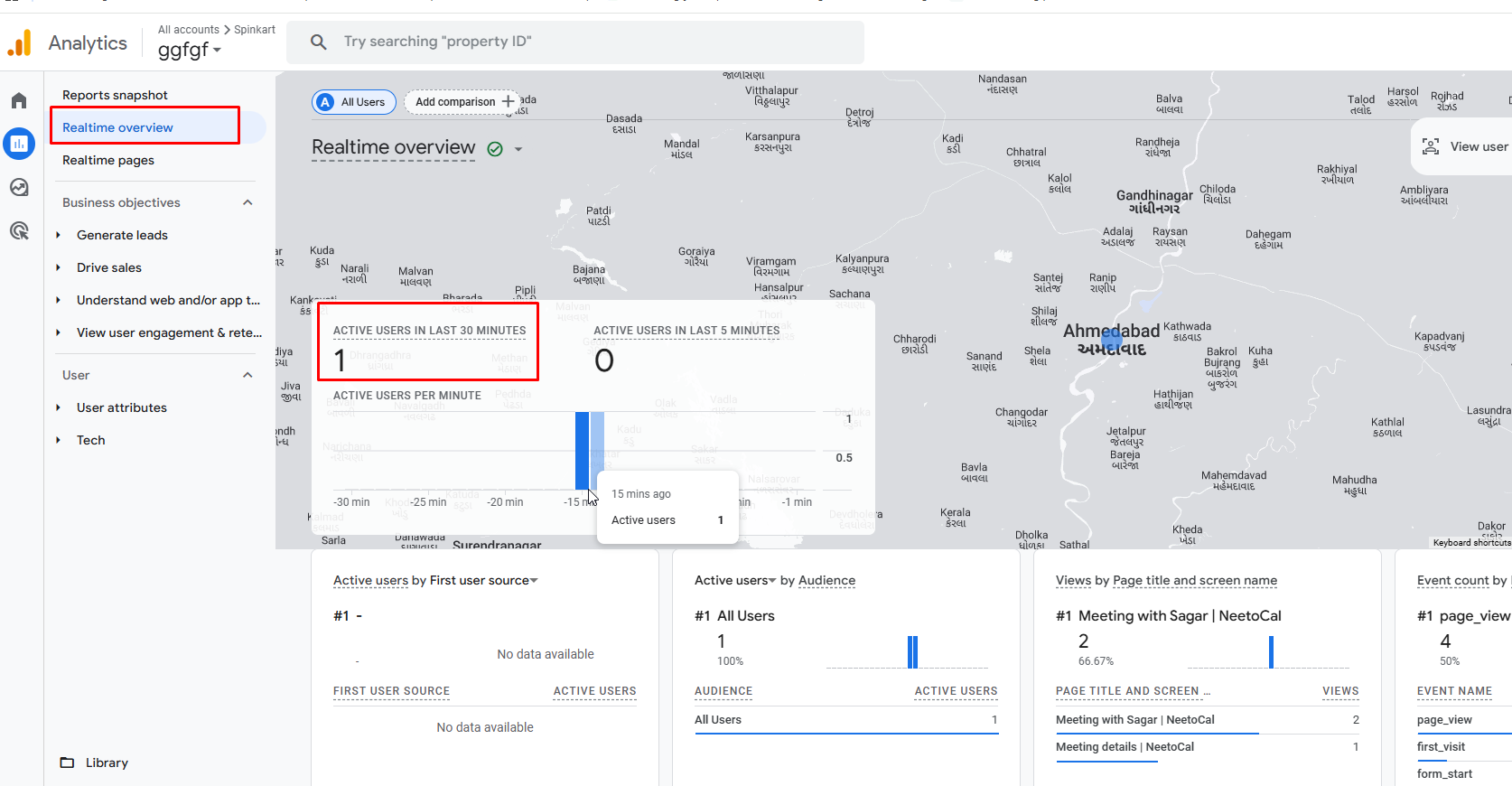
In Google Analytics, go to Reports > Real-time.
Keep that screen open, and in a different browser or an incognito window open one of your scheduling links.
Your visit should appear in the Real-time report within a few seconds.
Standard reports take 24 to 48 hours to fill in, so use Real-time to confirm the connection rather than waiting for the other reports.
If you embed your scheduling links
Bookings made inside an embed are recorded by the Google Analytics tag on your own website, not by the one NeetoCal loads. Paste that same Measurement ID here, so embedded and direct bookings end up in one place. See Capturing booking events from embedded scheduling links.
Finding your Measurement ID
Your Measurement ID starts with G- and belongs to a data stream inside your Google Analytics property.
Open https://analytics.google.com and select the property you want to use.
Click Admin.
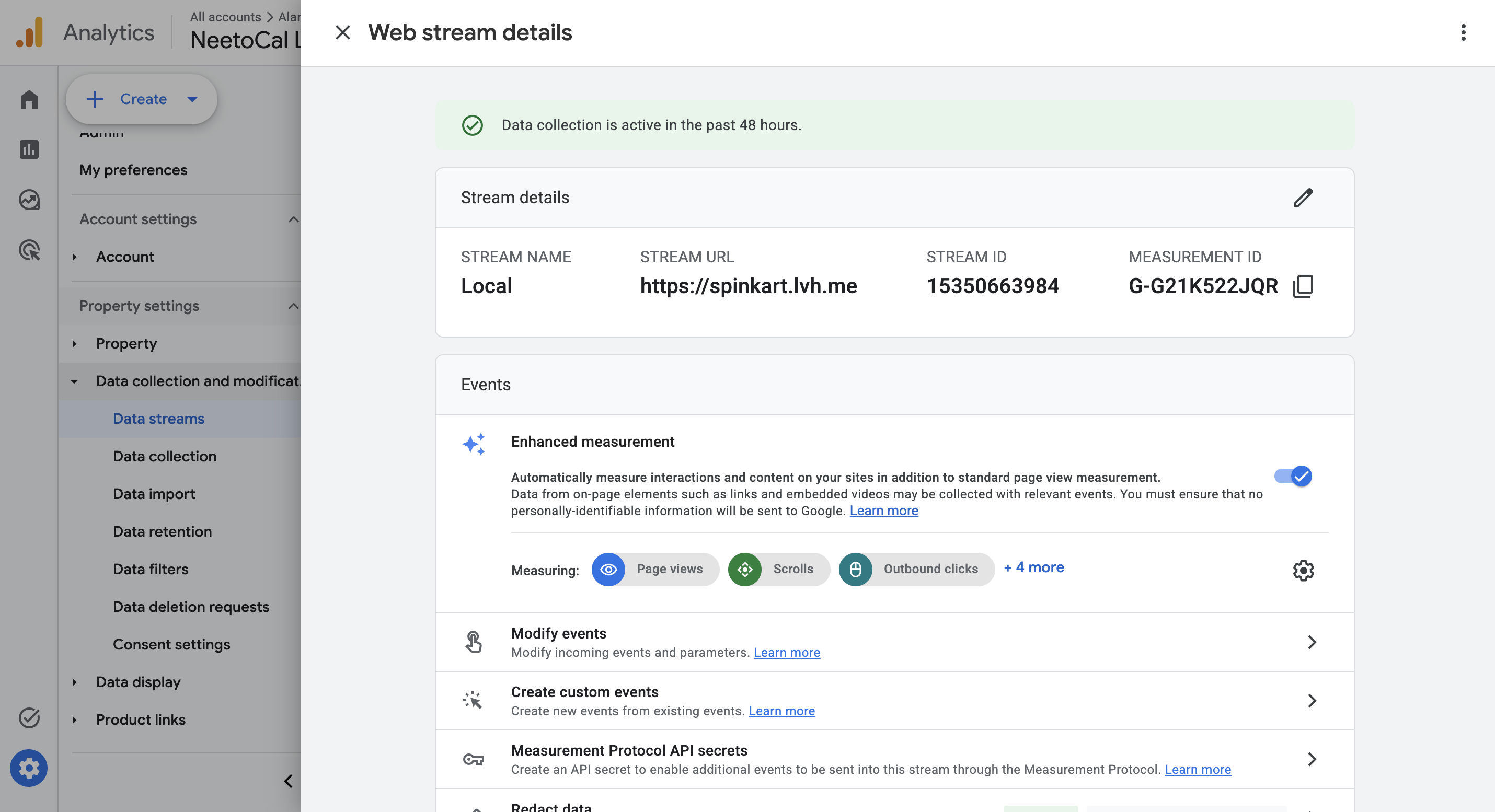
Click Data streams, then click your website's stream.
-
Copy the MEASUREMENT ID from the Stream details card.
Now paste it into NeetoCal, following Connecting Google Analytics.
Creating a Google Analytics account
Skip this section if you already have a Google Analytics account.
-
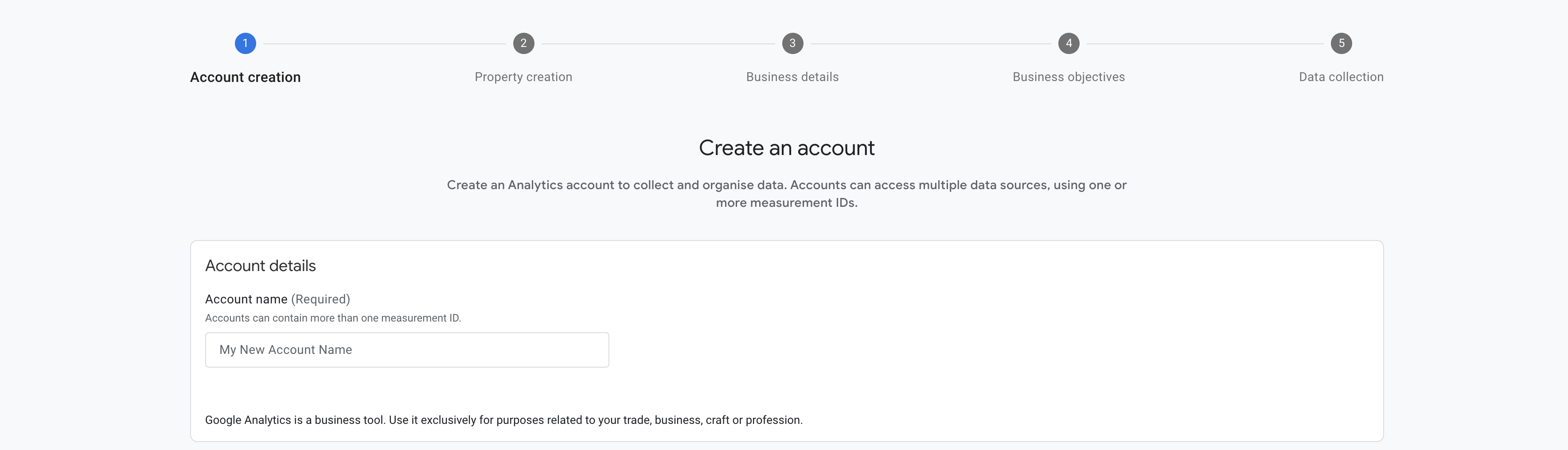
Visit https://analytics.google.com to create a Google Analytics account and fill in the basic details, such as the Account name, Property name, Business details and Business Objective. You can keep the account name as your workspace name.
-
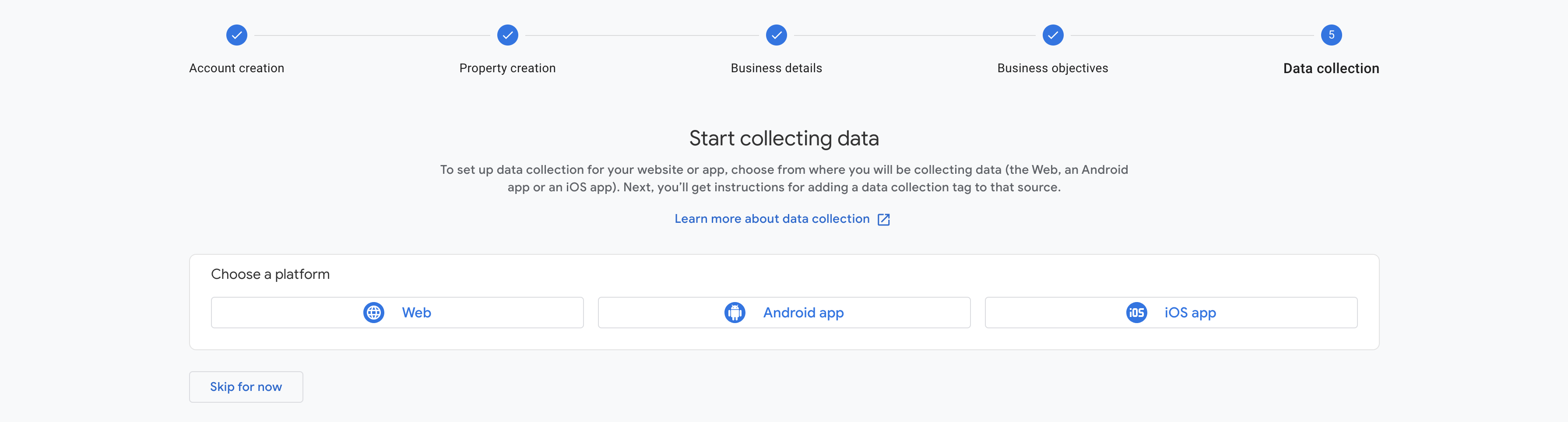
In the Data collection step choose the platform as Web.
-
To set up a data stream, specify the Website URL and give a Stream name, then click on the Create and Continue button.
In the Website URL, provide your main NeetoCal link without a slug. For example, if your subdomain is
spinkart, enterhttps://spinkart.neetocal.com-
In the Stream name, you can provide your workspace name (e.g.
Spinkart)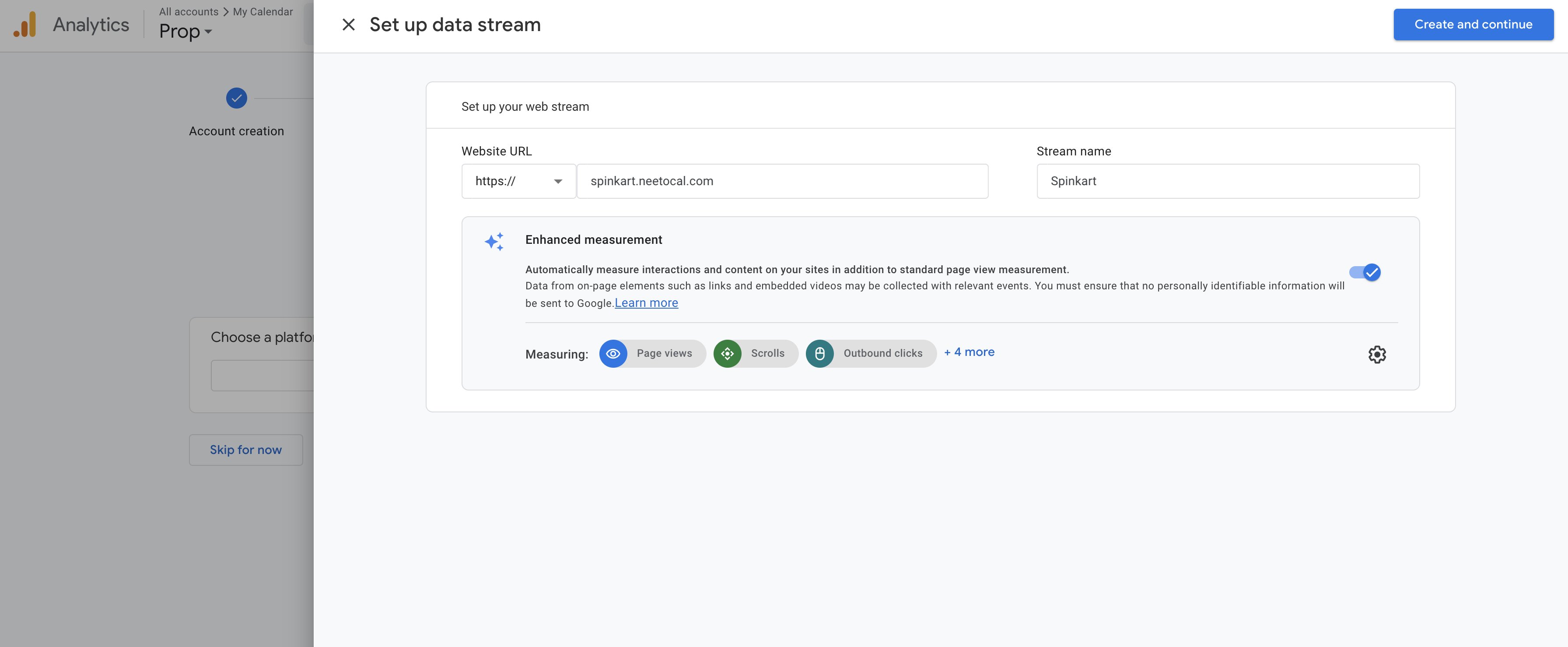
Your data stream now exists. Follow Finding your Measurement ID to copy its ID, then paste it into NeetoCal.