

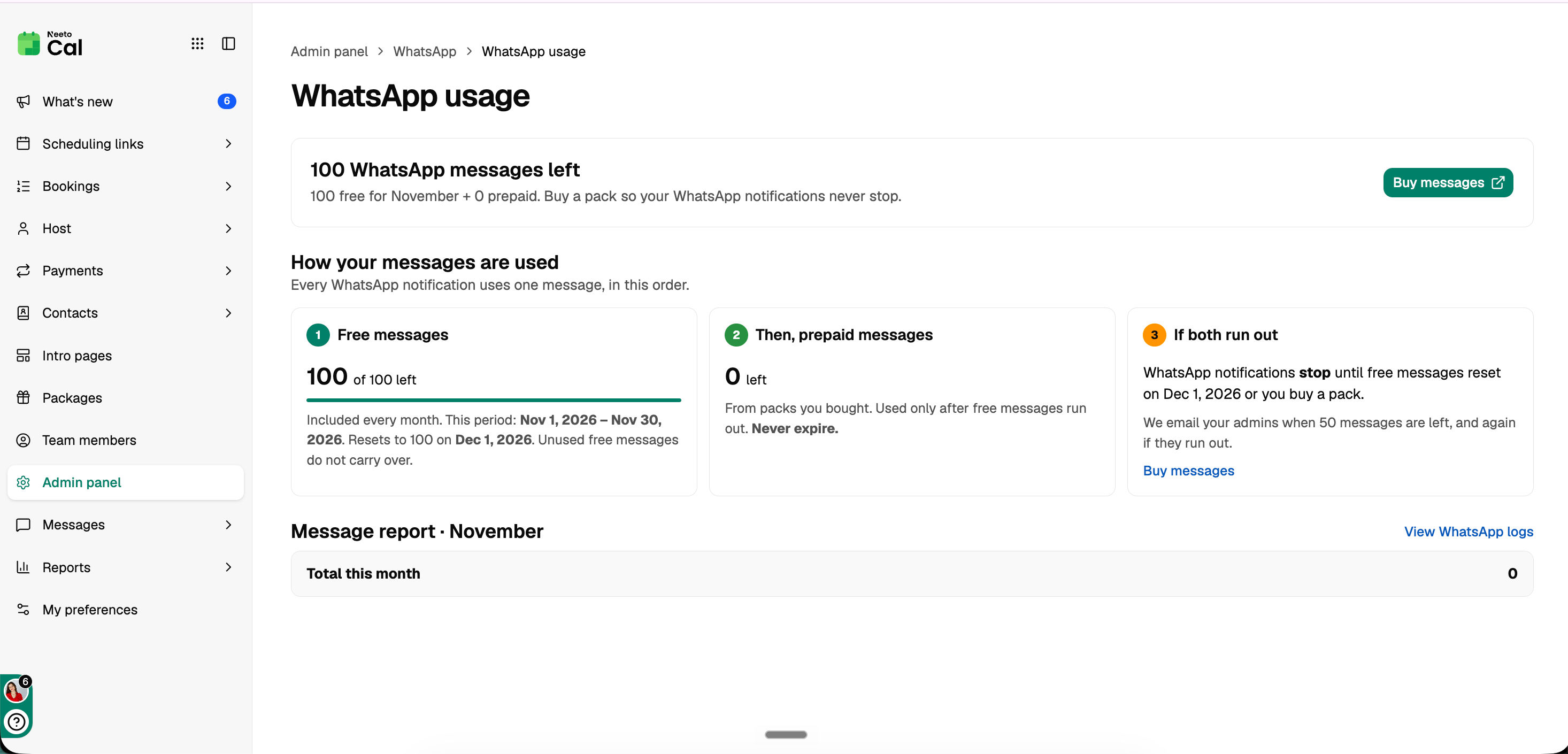
Every WhatsApp notification NeetoCal sends uses one WhatsApp message from your workspace's balance. The WhatsApp usage page shows how many messages you have left. The WhatsApp logs page shows every message sent.
How messages are counted
Each workspace gets 100 free WhatsApp messages every month, and you can buy prepaid packs when you need more. Free messages are used first, then prepaid messages. A message is counted only when WhatsApp reports it as delivered or read.
For pack prices and the full details, see WhatsApp pricing.
If you run out
When free and prepaid messages both run out:
WhatsApp notifications stop. Email and SMS notifications keep working as usual.
Each WhatsApp notification that couldn't be sent shows as Not sent in WhatsApp logs.
Notifications that weren't sent aren't retried later.
WhatsApp notifications start again as soon as you buy a pack, or when free messages reset next month.
NeetoCal emails your workspace admins when 50 messages are left, and again if they run out.
Checking your usage
Click Admin panel in the left sidebar.
Under WhatsApp, click WhatsApp usage.
The page shows:
How many messages you have left in total.
Free messages: how many are left this month and when they reset.
Prepaid messages: how many are left from the packs you bought.
Message report: how many messages each type of notification used this month, such as booking confirmations to clients or reminders to hosts.
Buying more messages
Go to Admin panel › WhatsApp › WhatsApp usage.
Click Buy messages.
Choose a pack and complete the payment.
You'll go back to the buy page, and your new balance shows once the payment is confirmed. You can also click Buy messages in the low-balance or ran-out email.
WhatsApp logs
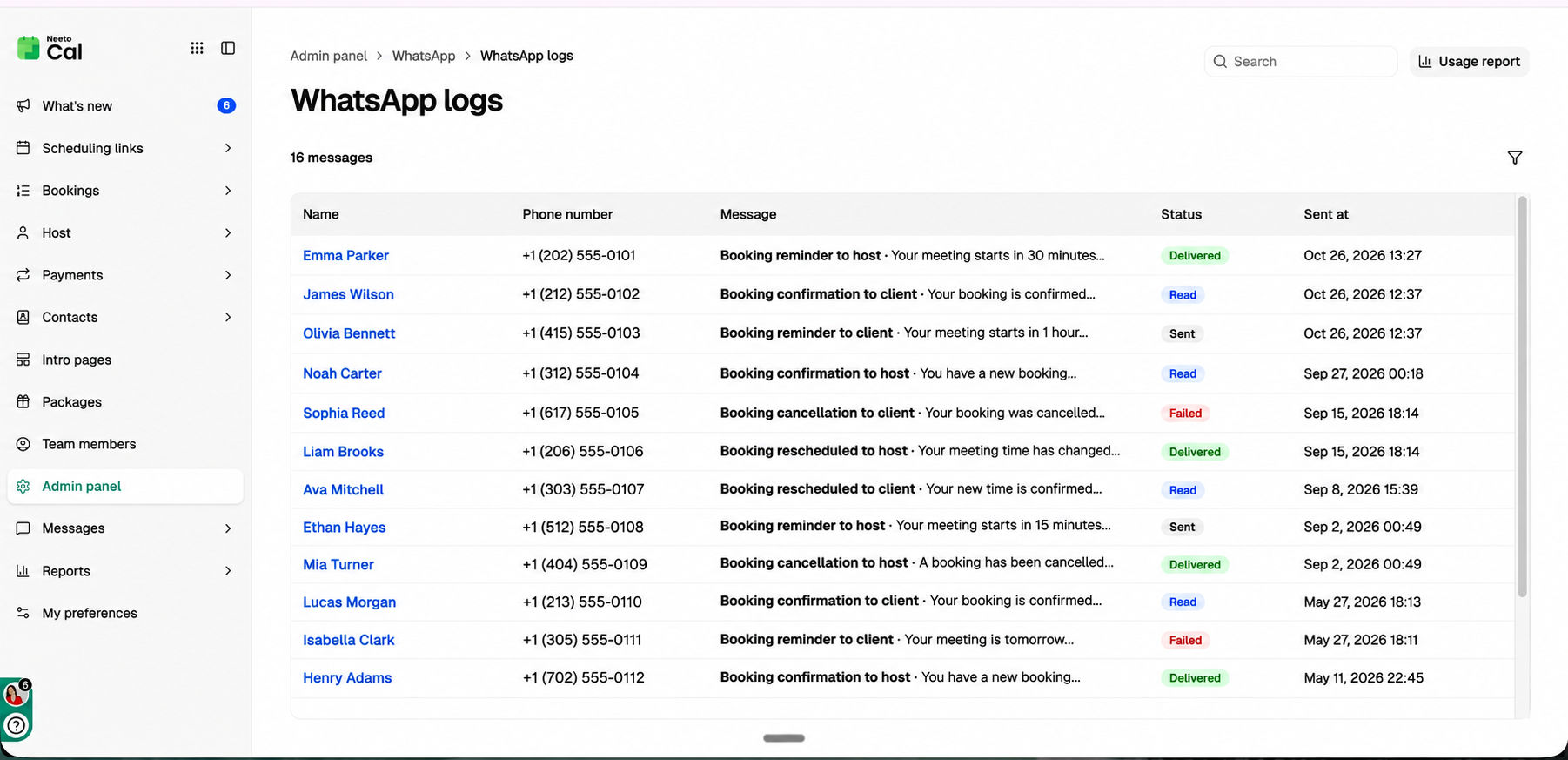
WhatsApp logs list every WhatsApp message sent from your workspace.
Click Admin panel in the left sidebar.
Under WhatsApp, click WhatsApp logs.
Each row shows the recipient's name, phone number, the message, its status, and when it was sent. You can search the logs and filter them by Sent on date.
Message statuses:
Status |
Meaning |
|---|---|
Pending |
Waiting to be sent |
Sent |
Sent to WhatsApp |
Delivered |
Reached the recipient's phone |
Read |
The recipient opened it |
Failed |
WhatsApp couldn't deliver it. It isn't counted. |
Not sent |
Not sent because the workspace had no messages left |
Click a message to open its details. You'll see:
The message type.
Counted as: whether it came from free or prepaid messages, is waiting to be delivered, or wasn't counted.
A timeline of when it was queued, sent, delivered, and read.
The exact message as it was sent.
A link to the booking it belongs to.
Who can see usage and logs
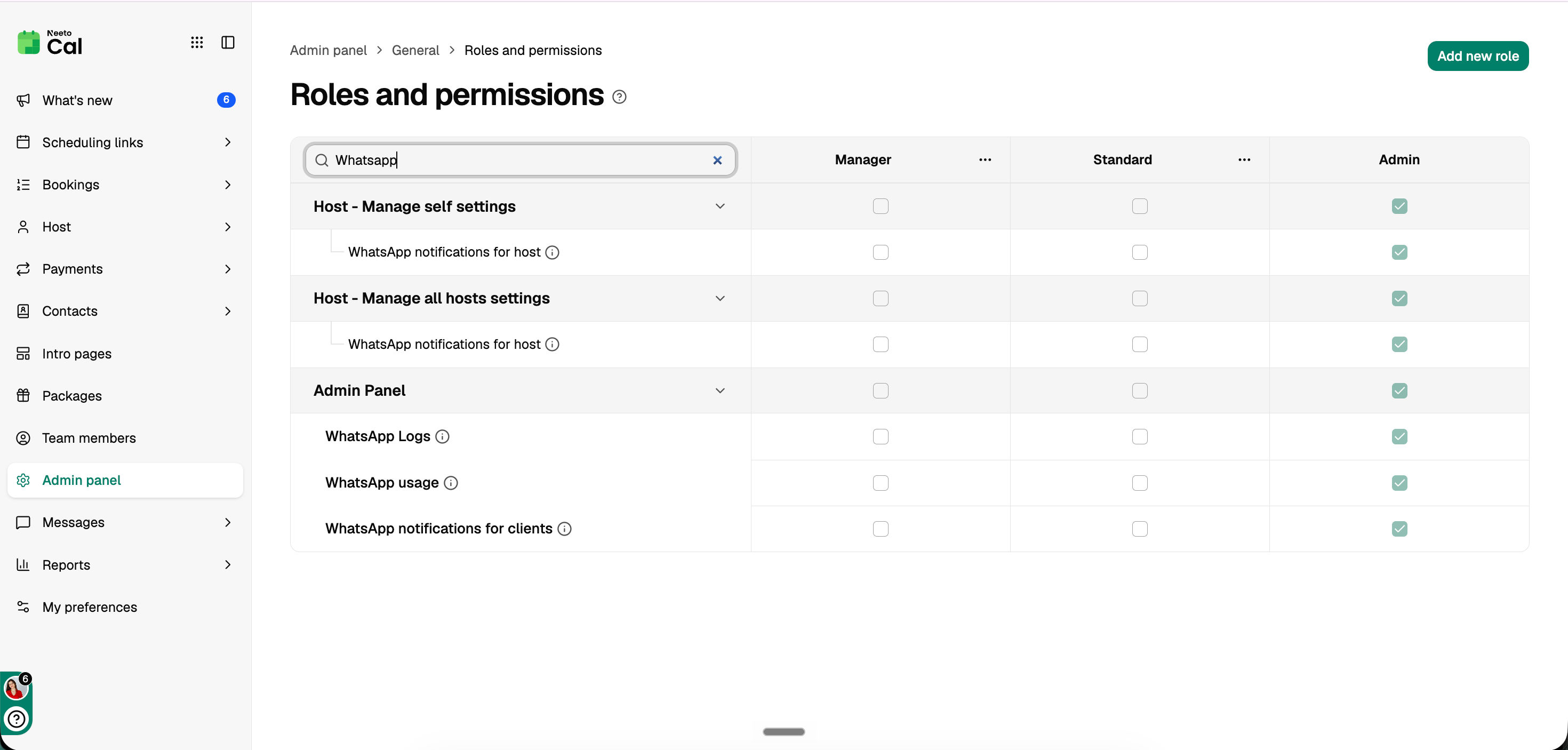
View WhatsApp usage lets a member see the usage page and buy more messages.
View WhatsApp logs lets a member see all WhatsApp messages sent from the workspace.
You can change these permissions in Admin panel › Roles and permissions.
Related articles: WhatsApp notifications for host · WhatsApp notifications for client · WhatsApp policy · WhatsApp pricing