

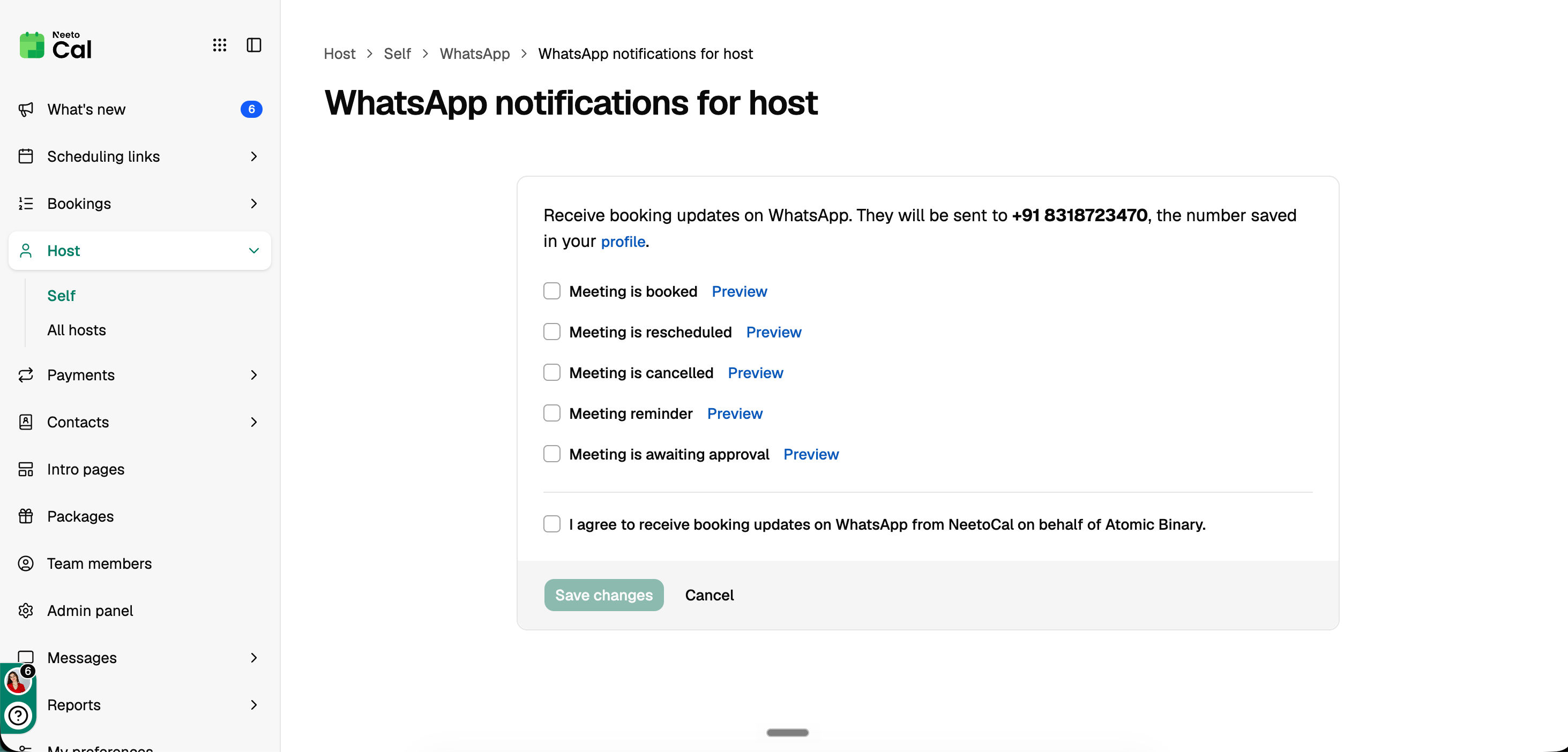
Get booking updates on WhatsApp without setting up your own WhatsApp Business account. NeetoCal sends the messages for you, so you're notified on your phone right away when a meeting is booked, rescheduled, cancelled, or when a reminder is sent.
Updates you can get
Meeting is booked
Meeting is rescheduled
Meeting is cancelled
Meeting reminder
Meeting is awaiting approval
All of these are off by default. You choose which ones you want.
Before you start
WhatsApp messages go to the phone number saved in your profile. If you haven't added one, the page shows Phone number missing and you can't turn notifications on. Add your number in My profile first. Include the country code.
Turning on WhatsApp notifications
Click Host in the left sidebar.
Open the Self tab.
Under WhatsApp, click WhatsApp notifications for host.
Tick the updates you want to receive.
Tick the consent box: "I agree to receive booking updates on WhatsApp from NeetoCal on behalf of [workspace name]."
Click Save changes.
You must tick the consent box to save. WhatsApp only allows business messages to people who have agreed to get them.
Setting up WhatsApp reminders
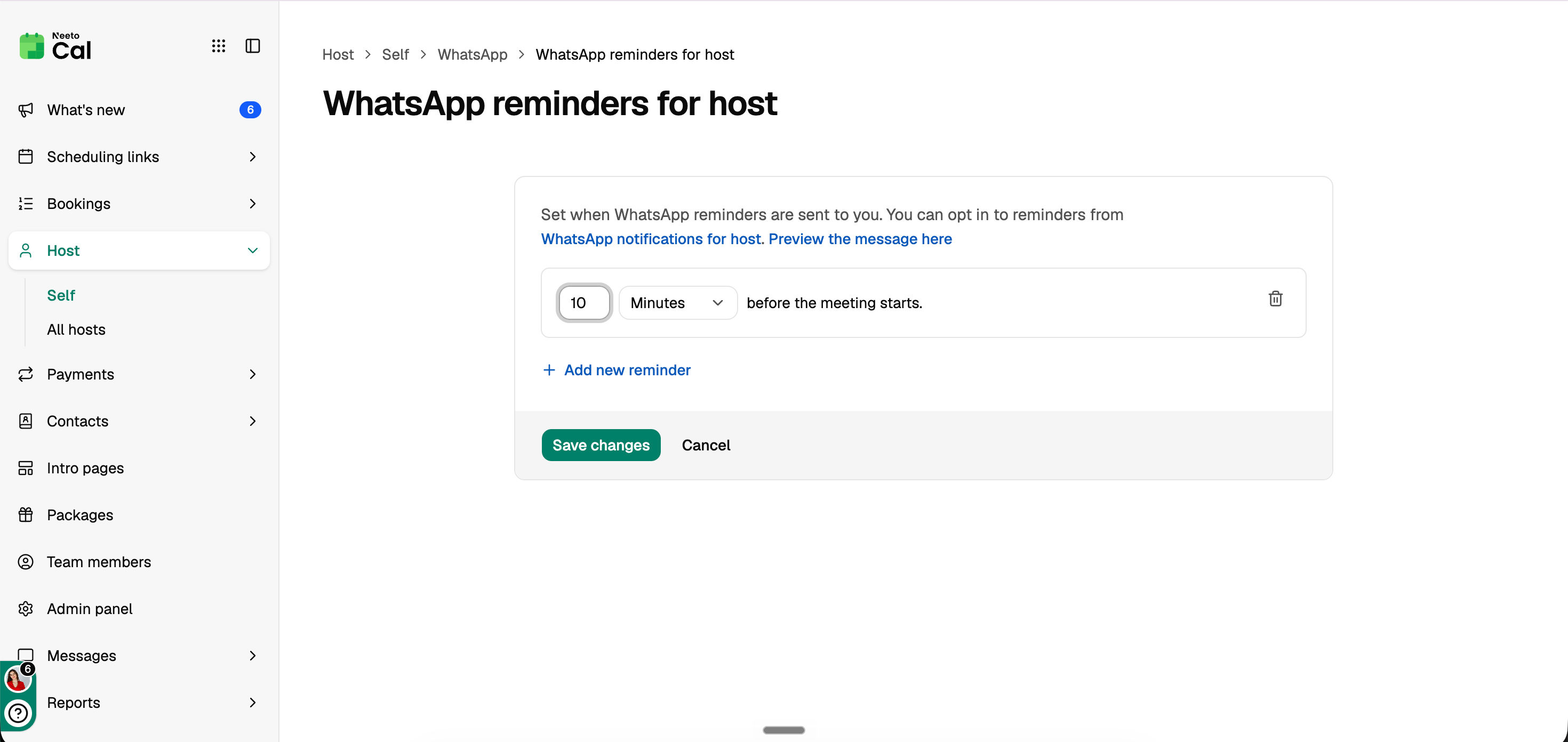
Reminders are sent before each meeting. The default is 10 minutes before.
Click Host tab in the left sidebar and open the Self tab.
Under WhatsApp, click WhatsApp reminders.
Add or edit the reminder times you want.
Click Save changes.
Reminders only go out if Meeting reminder is ticked in your WhatsApp notifications and you have given consent.
If you change your phone number
If you change the phone number in your profile, WhatsApp notifications pause. Your consent was for your old number, so NeetoCal stops messaging it. To restart notifications, open WhatsApp notifications for host again, tick the consent box, and save. Updates will then go to your new number.
Managing WhatsApp notifications for other hosts
Admins with the right permission can choose which updates another host gets.
Click Host in the left sidebar and open the All hosts tab.
Select the host.
Open WhatsApp notifications or WhatsApp reminders.
Choose the updates or reminder times, then save.
You can choose the updates for another host, but you can't give consent for them. Each host has to agree in their own settings. Until they do, the page shows that they haven't agreed yet, and no messages are sent to them.
Turning WhatsApp notifications off
Untick the updates you don't want, or untick the consent box, and click Save changes.
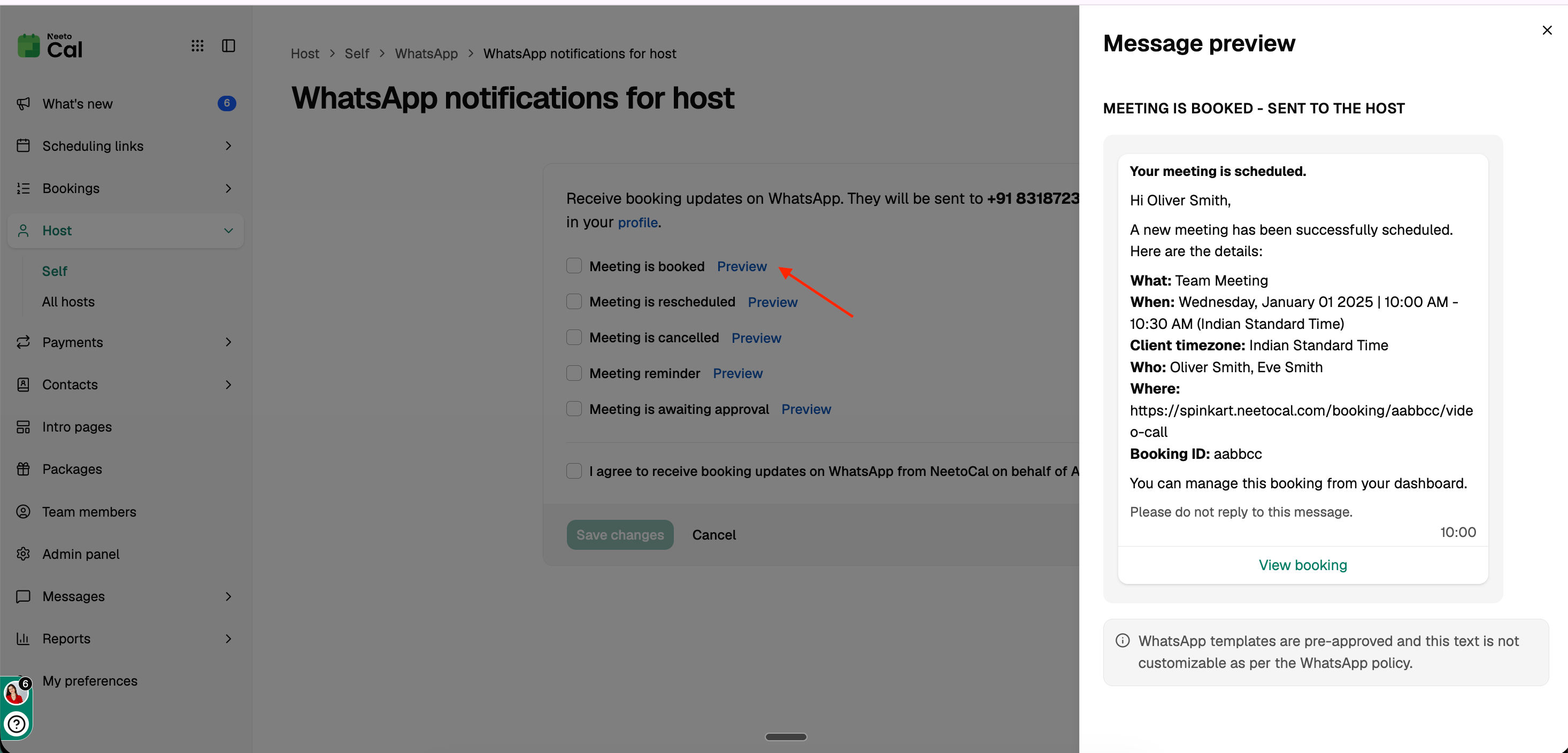
Preview the message
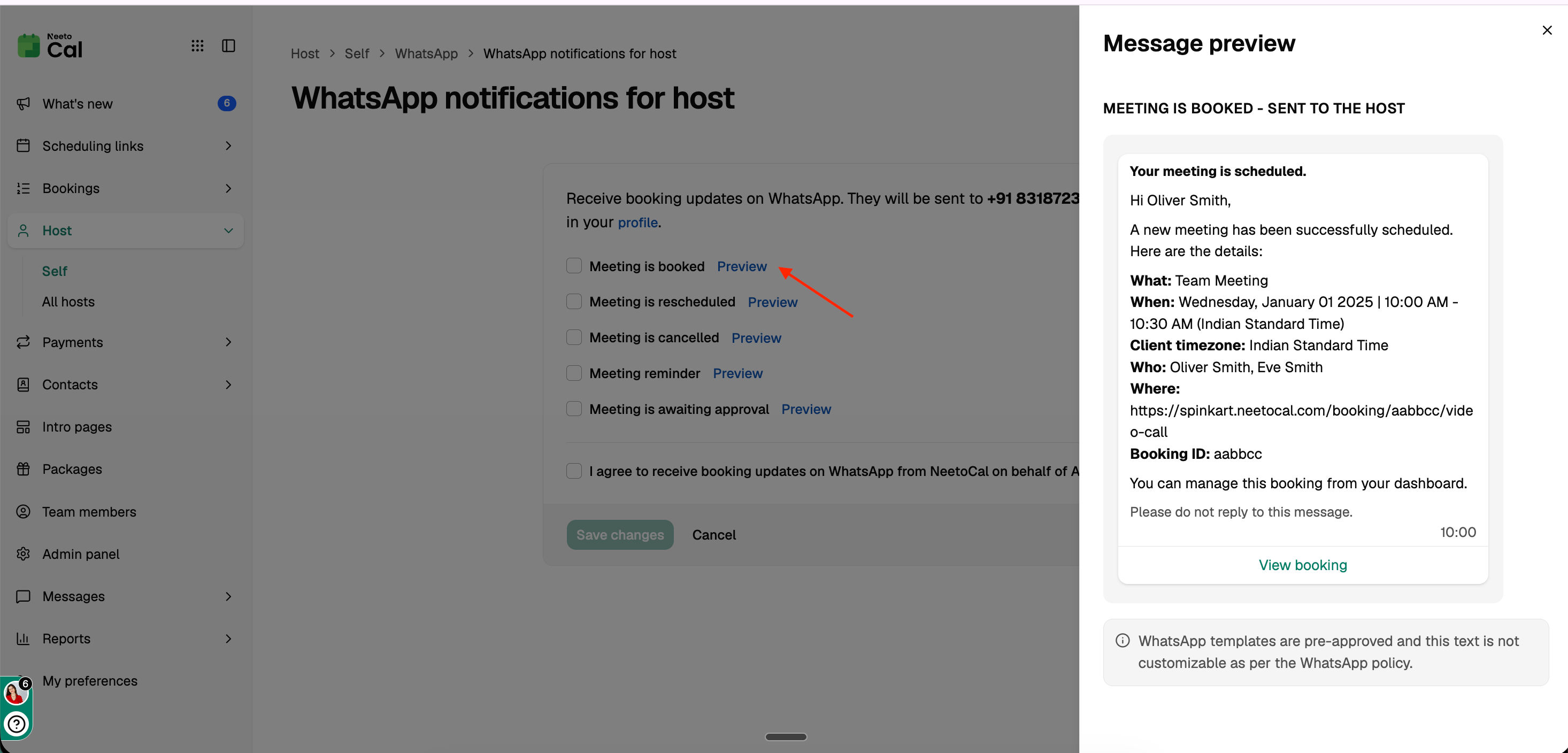
Click Preview on the notifications or reminders page to see the exact message you'll get. WhatsApp templates are pre-approved by WhatsApp, so you can't change the text. See WhatsApp policy.
Who can change these settings
Manage own WhatsApp lets a member choose their own updates and give consent.
Manage all hosts' WhatsApp lets a member choose the updates for any host.
You can change these permissions in Admin panel › Roles and permissions.
Related articles: WhatsApp notifications for client · WhatsApp policy · WhatsApp usage and logs · WhatsApp pricing