

Removing a team member ensures they no longer have access to your workspace. During this process, NeetoCal helps you handle any upcoming bookings so nothing gets missed.
How to remove a team member
Click on Team members on left-side bar.
Find the team member you want to remove.
Click the three-dot menu next to their name.
Select Remove member.
The removed member is not notified
NeetoCal does not email a team member when you remove them. They lose access to the workspace immediately, and their scheduling links stop accepting bookings.
What happens to their scheduling links
Every scheduling link where the removed member was the only host, or the main host of a multi-host link, is disabled. The removal window lists those links before you confirm, and all workspace admins get an email naming them.
Visitors who open a disabled link see the inactive-link page unless the workspace has a redirect URL set. See Redirect disabled links.
What happens if the member has upcoming bookings
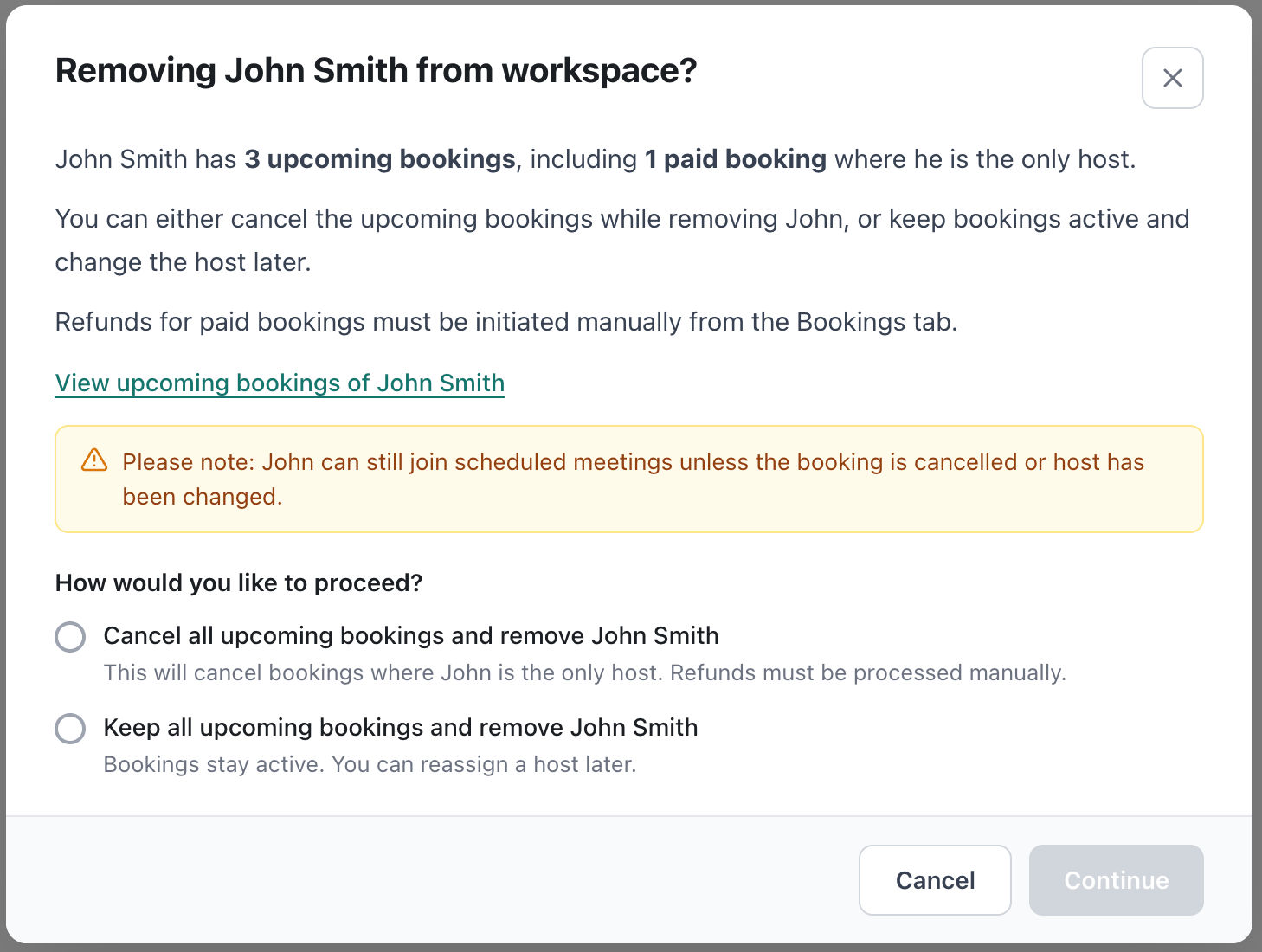
If the team member has upcoming bookings, NeetoCal will show a detailed alert before removal.
This alert includes:
The number of upcoming bookings
Whether any of them are paid bookings
A quick link to view all upcoming bookings
You’ll also see an important note:
The host can still join scheduled meetings unless the booking is cancelled or the host is changed.
Choose how to handle existing bookings
Before removing the team member, you must choose one of the following options:
1. Cancel all upcoming bookings
Cancels all meetings where the member is the host
Clients will be notified about the cancellation
If there are paid bookings, refunds must be handled manually from the Bookings tab.
2. Keep all upcoming bookings
Bookings will remain active
You can reassign another host later
Useful if you plan to change the host for those bookings instead of cancelling.
Handling paid bookings
If any upcoming bookings are paid:
NeetoCal will clearly highlight this in the alert.
Refunds are not automatic.
You must manually process refunds from the Bookings tab.
Why this flow matters
This ensures:
No bookings are left unattended.
Clients are not confused by missed meetings.
You have full control over cancellations and reassignment.
Tip: If meetings are important, it’s better to keep bookings active and reassign a new host before removing the team member.