

Round-robin meetings automatically assign a host to each booking based on your chosen assignment method (balanced or priority-based).
With the Allow clients to choose the host setting, you can give your clients the option to pick who they'd like to have meeting with before booking.
Enabling the setting
Go to your round-robin scheduling link and click the Host tab.
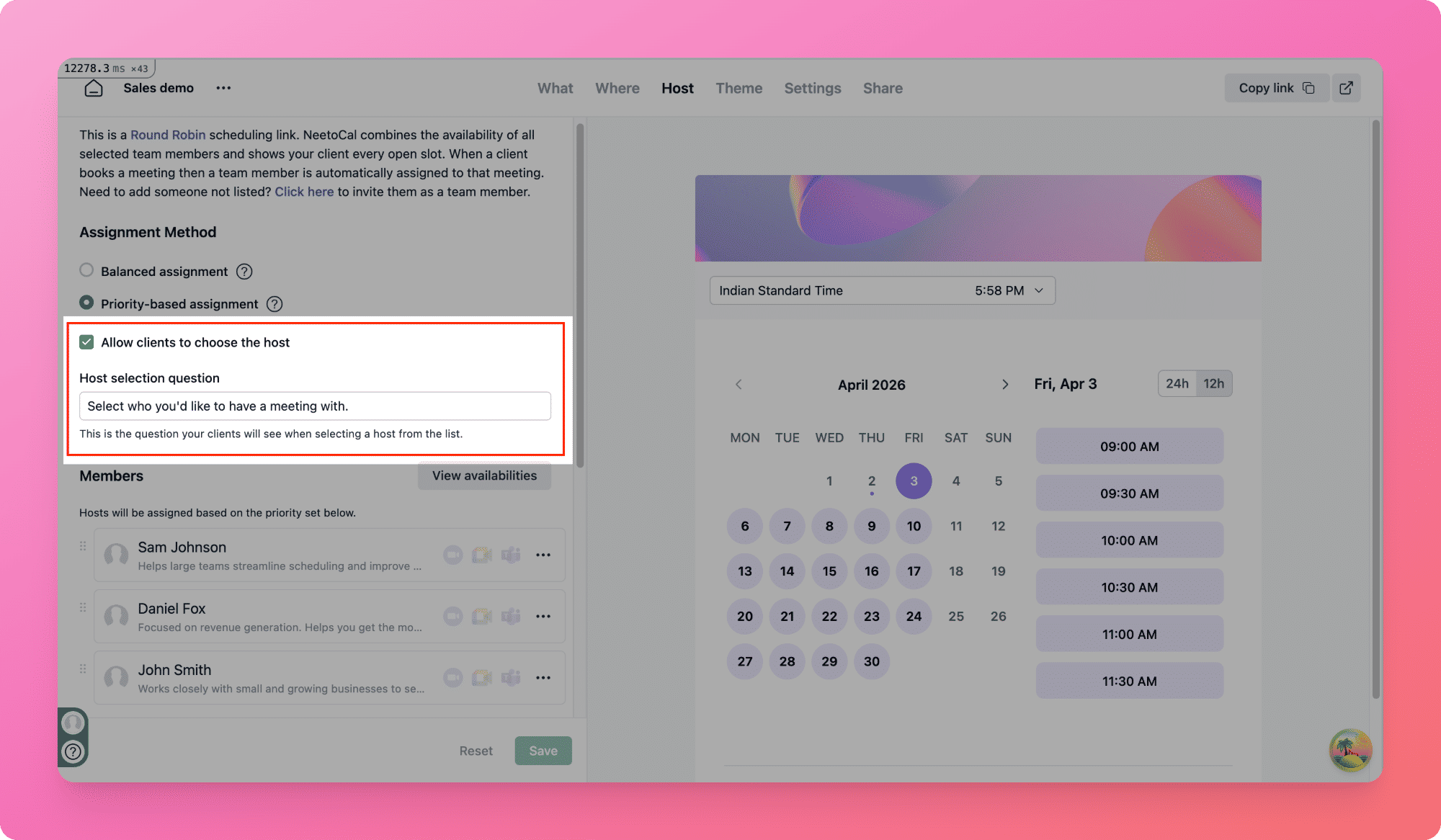
Below the assignment method options (Balanced assignment / Priority-based assignment), you'll see a checkbox labeled Allow clients to choose the host.
Check the box to enable it.
Note:
This setting requires at least 2 hosts on the scheduling link. If only 1 host is present, the checkbox will be disabled.
Customizing the host selection question
Once enabled, a text field labeled Host selection question appears.
This is the question your clients will see at the top of the host selection screen on your scheduling page.
Default text:
Select who you'd like to have a meeting with.
You can customize it, for example:
Who would you like to speak with?
Choose your advisor.
Which therapist would you like to book with?
If you leave this field blank, the default text will be used automatically.
Adding host descriptions
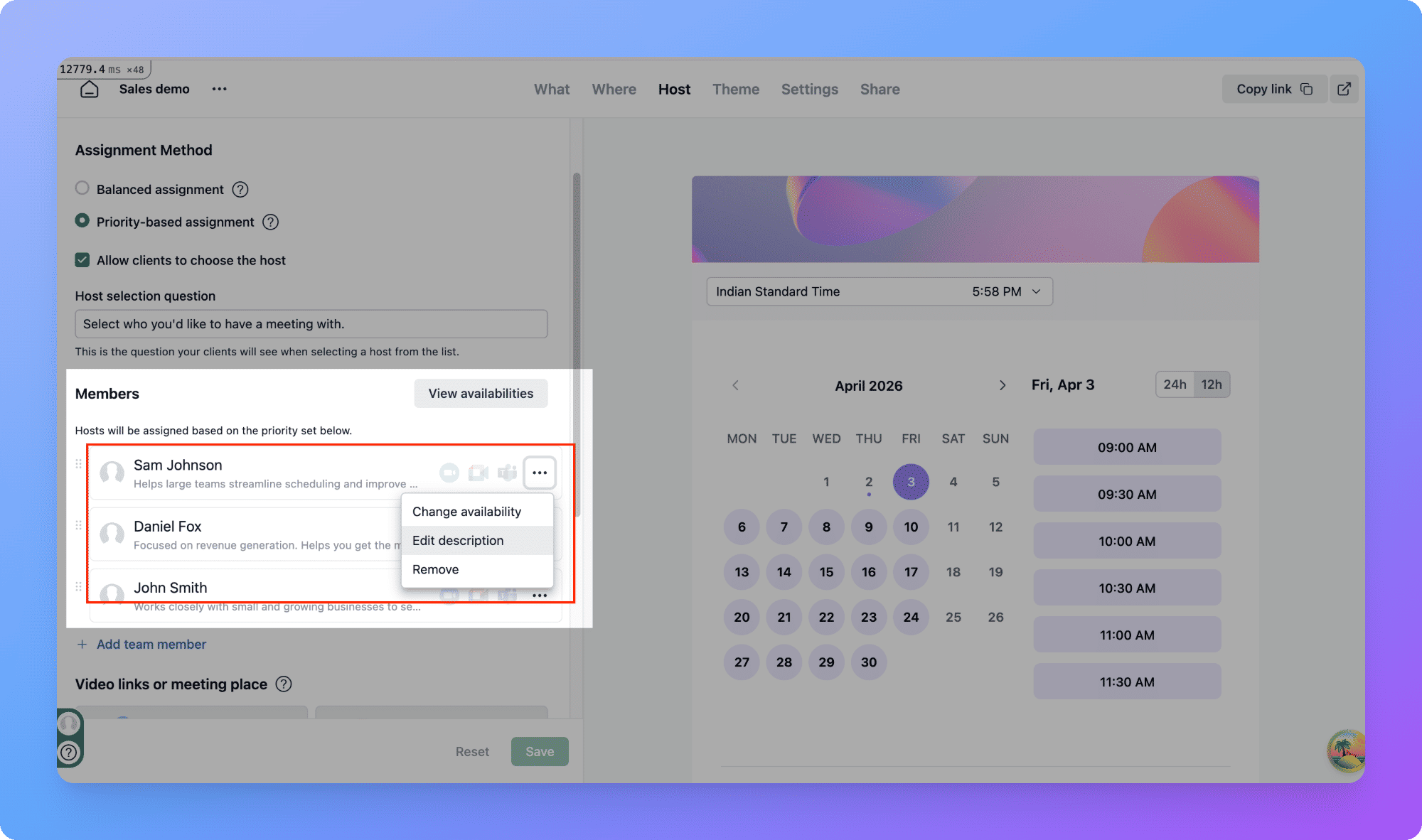
You can also add a short description for each host that appears below their name on the scheduling page. This helps clients understand each host’s role or expertise.
To add a description:
Click the triple-dot menu (...) appearing next to host name.
Select Edit description.
Add a short description (e.g., Senior account manager specializing in enterprise clients).
Click Save.
The description will appear as subtext below the host’s name on the scheduling page.
What your clients see
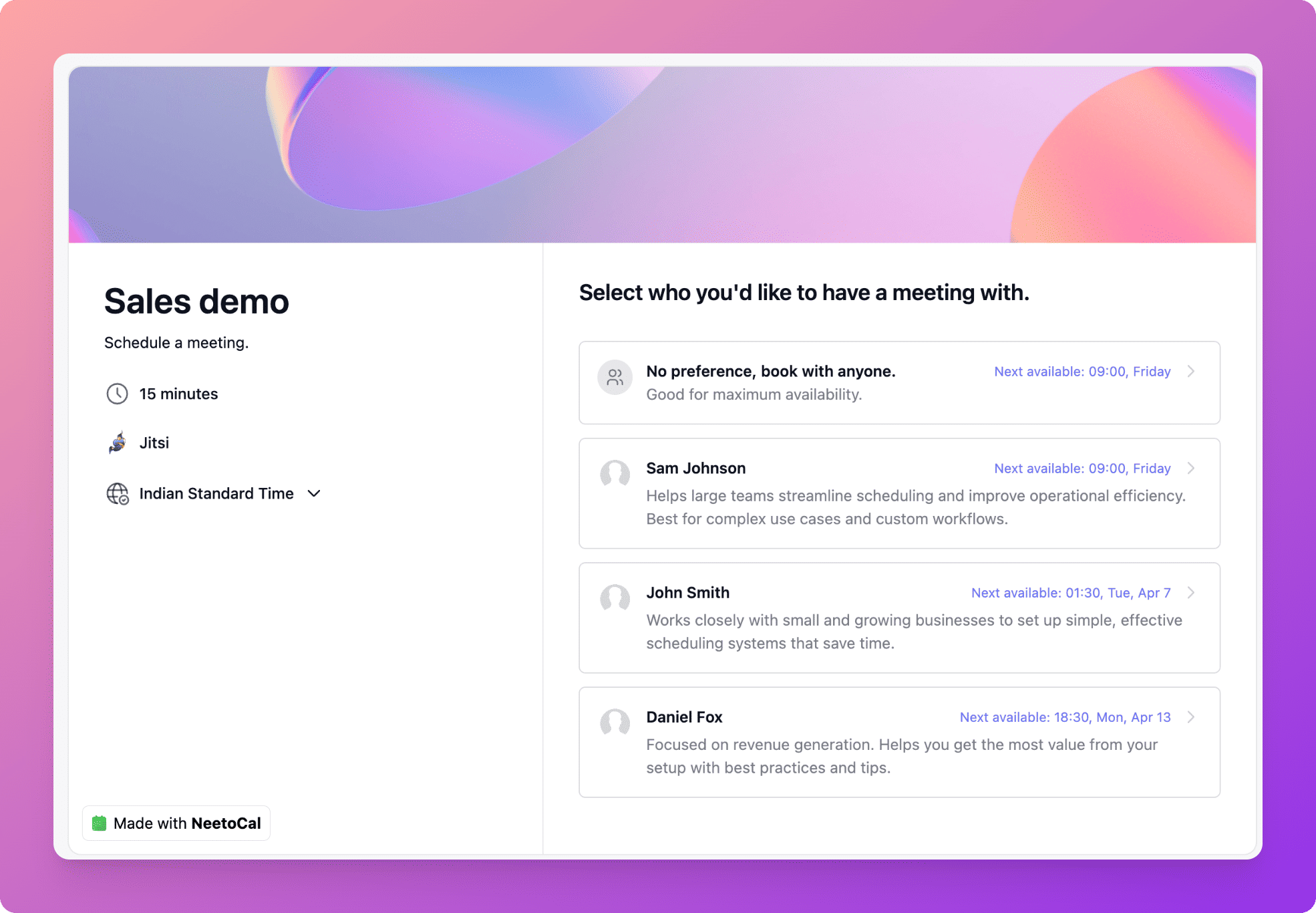
When a client opens your scheduling link, they’ll see the host selection screen instead of the calendar.
This screen includes:
Your custom question at the top
A No preference, book with anyone option
Individual host cards showing:
Host name
Description (if added)
Next available time
Choosing a specific host
When a client selects a specific host:
The calendar shows only that host’s available time slots.
The booking is assigned to that host.
The host’s name appears on the left panel.
Choosing “No preference”
When a client selects No preference:
The calendar shows available slots from all hosts combined.
The system assigns a host automatically based on your assignment method (balanced or priority-based).
Changing the selection
A Back button appears below the calendar, allowing the client to return to the host selection screen and choose a different host before booking.
Handling recurring bookings in case of host preference
When a specific host is selected:
All recurring slots are validated against that host’s availability.
If the host is unavailable for a particular week, that slot is marked unavailable.
The client can change unavailable slots (calendar will still show only that host’s availability).
All bookings are assigned to the selected host.
When “No preference” is selected:
Each recurring booking is assigned independently using your round-robin assignment method
Handling rescheduling in case of host preference
When a client reschedules a booking made with a specific host:
The calendar shows only that host’s available slots.
The booking remains assigned to the same host.
If the selected host has been removed, or if the Allow clients to choose the host setting is disabled:
The system falls back to standard round-robin behavior.
The calendar shows availability from all hosts.
Disabling the setting
You can disable this setting at any time by unchecking the Allow clients to choose the host checkbox.
When disabled:
Clients will no longer see the host selection screen.
Bookings will be assigned automatically using round-robin.
Your custom question and host descriptions are preserved.
They will reappear if you re-enable the setting.
Note:
This setting is automatically disabled if the number of hosts drops below 2.
Summary
Client choice | Slots shown | Host assignment | Recurring bookings |
|---|---|---|---|
Specific host | Only that host’s available slots | Assigned to chosen host | All bookings assigned to chosen host |
No preference | All hosts combined slot availability | Round-robin (balanced/priority) | Each host assigned independently |