

Send your clients booking updates on WhatsApp without setting up your own WhatsApp Business account. NeetoCal sends the messages for you, so clients get confirmations, changes, and reminders in an app they already use, and fewer meetings are missed.
Updates clients can get
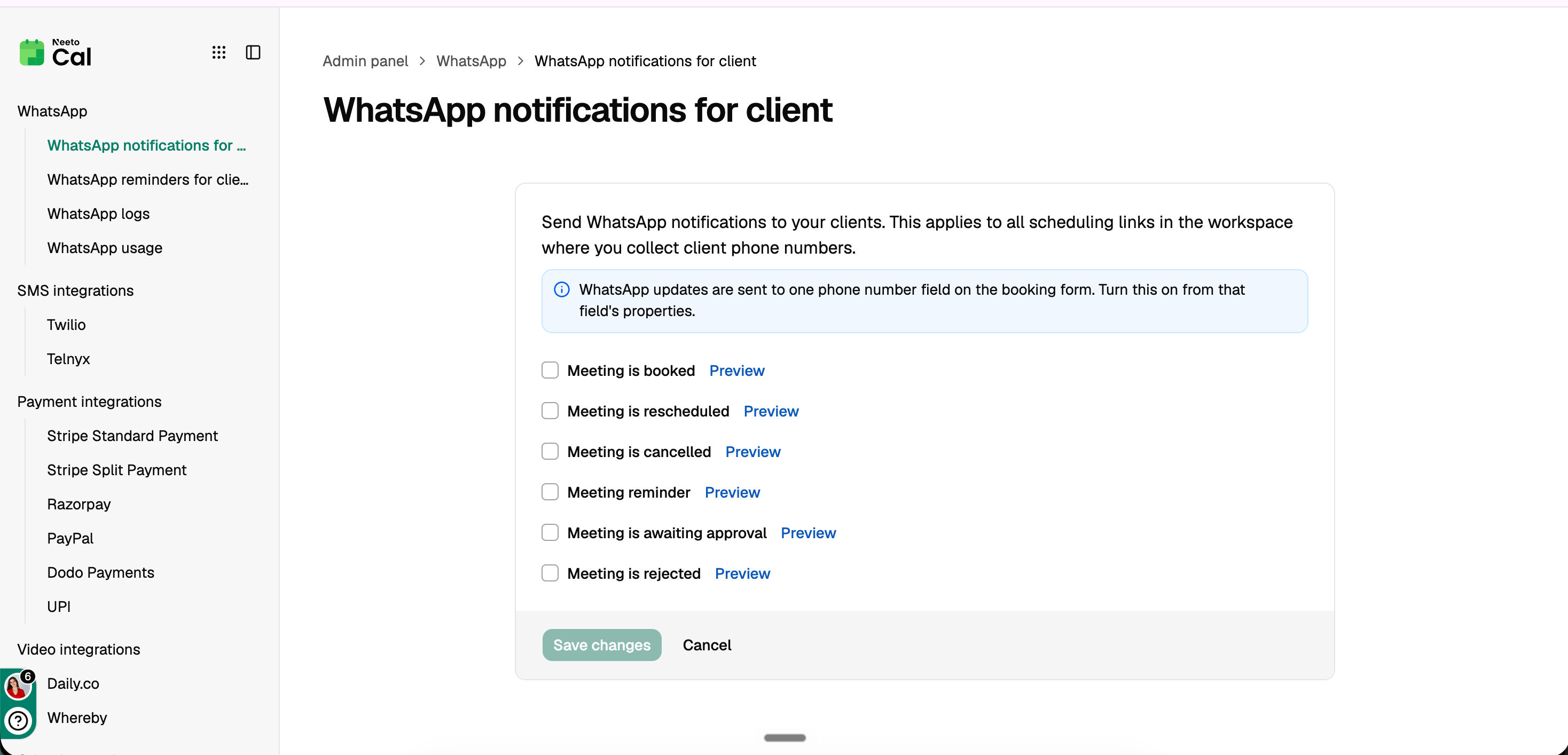
Meeting is booked
Meeting is rescheduled
Meeting is cancelled
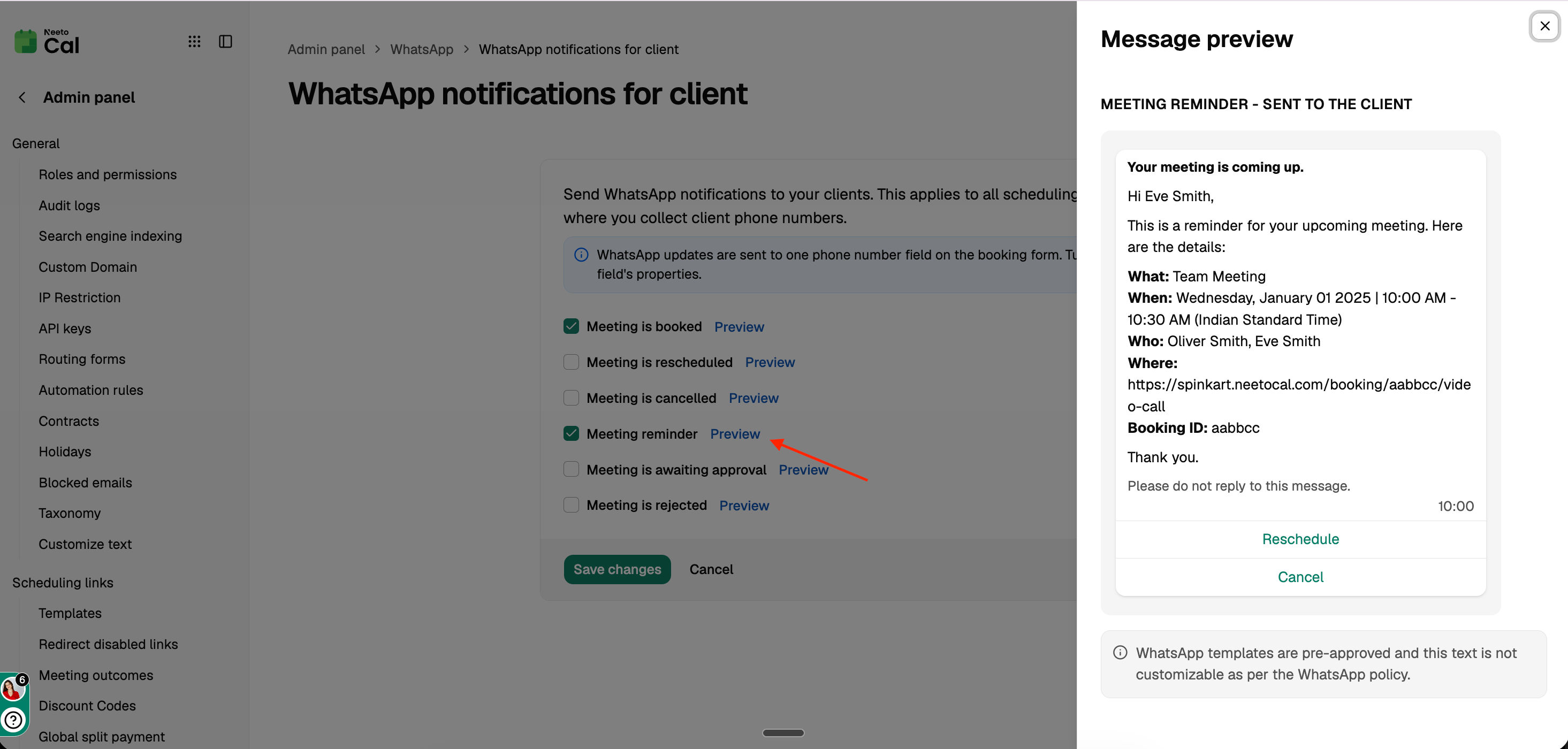
Meeting reminder
Meeting is awaiting approval
Meeting is rejected
All of these are off by default. You choose them once, and they apply to every scheduling link in the workspace.
How it works
Clients get WhatsApp messages only when all of these are true:
The update is turned on in WhatsApp notifications for client.
The scheduling link's booking form has a phone number field with Send WhatsApp updates turned on.
The client ticked the WhatsApp consent box when booking.
Your workspace has WhatsApp messages left. See WhatsApp usage and logs.
Step 1: Choose the updates to send
Click Admin panel in the left sidebar.
Under WhatsApp, click WhatsApp notifications for client.
Tick the updates you want to send.
Click Save changes.
Tip: start with reminders
If you're new to WhatsApp notifications, start by turning on only Meeting reminder. Reminders do the most to reduce no-shows, and clients still get confirmations and other updates by email.
With one reminder per booking, your 100 free messages cover about 100 bookings a month. After a month, check WhatsApp usage to see how many messages you used, then turn on more updates if you need them. See WhatsApp pricing.
When you set the reminder time in Step 3, choose one that gives clients enough notice, for example 1 hour or 1 day before the meeting.
Step 2: Turn on WhatsApp updates for the phone field
WhatsApp updates go to one phone number field on the booking form.
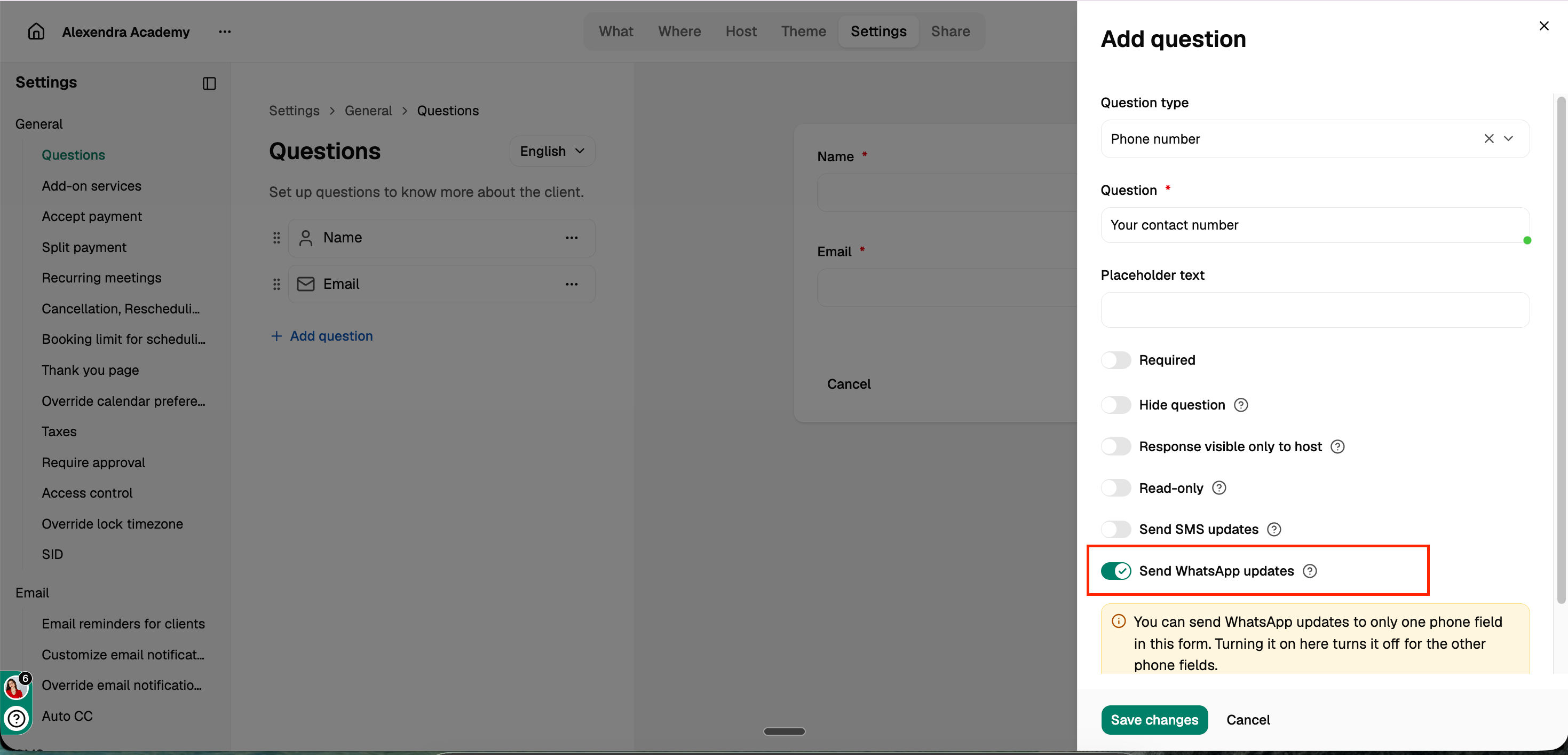
Open the scheduling link and go to Settings › Questions.
Add a Phone number question, or click an existing one.
Turn on Send WhatsApp updates.
Save the question.
Only one phone field per form can send WhatsApp updates. If you turn it on for a second field, it turns off for the first. If the phone field is hidden, no WhatsApp updates are sent.
What the client sees
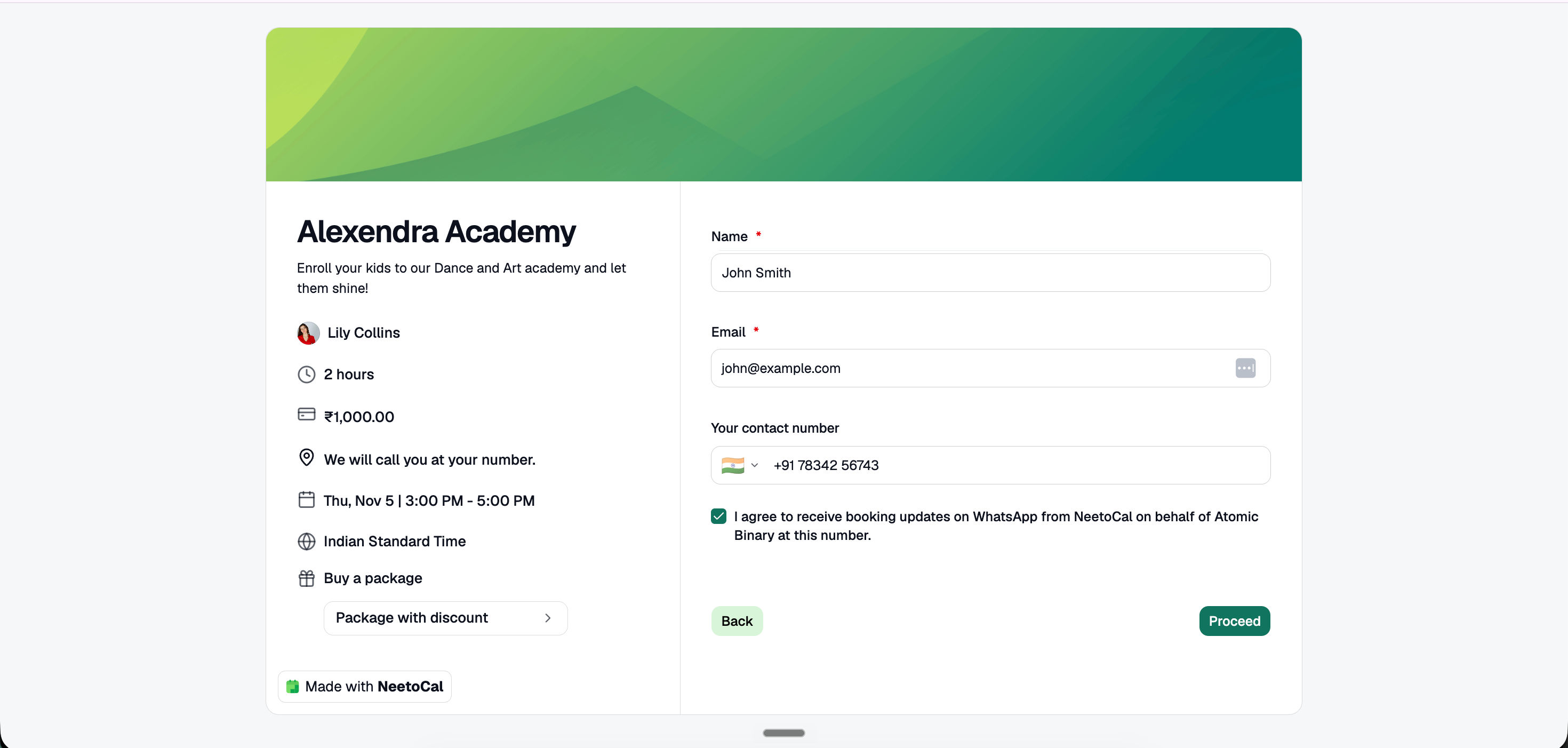
When Send WhatsApp updates is on, the booking form shows a consent box under the phone field:
I agree to receive booking updates on WhatsApp from NeetoCal on behalf of [workspace name] at this number.
If the client ticks it, they get the updates you turned on. If they leave it unticked, they still get emails as usual, but no WhatsApp messages. You can see whether a client agreed in the booking details, under the client's responses.
If you book a meeting on a client's behalf, tick the consent box only if the client has agreed to get WhatsApp messages.
Step 3: Set up WhatsApp reminders for clients
Click Admin panel in the left sidebar.
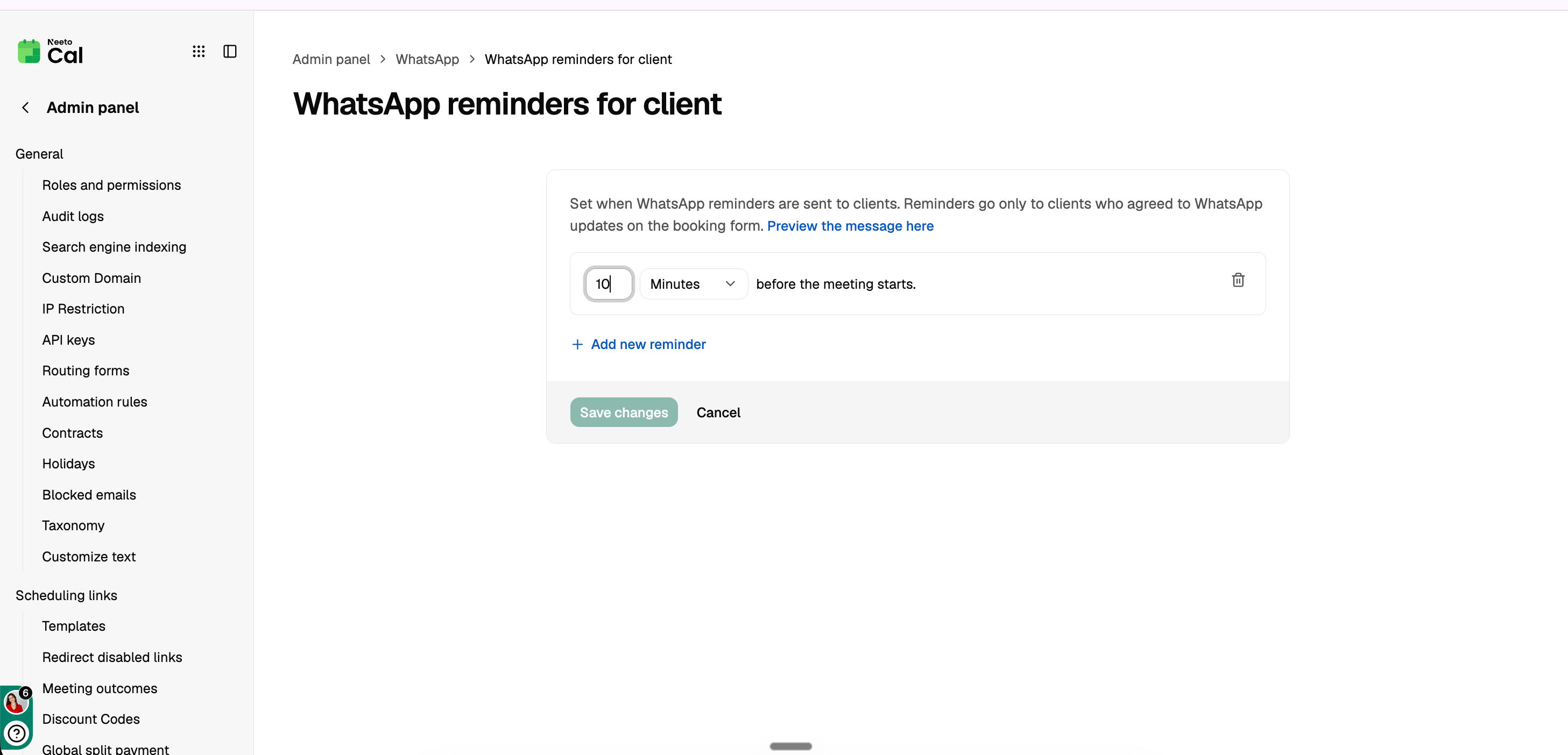
Under WhatsApp, click WhatsApp reminders for client.
Add the reminder times you want. The default is 10 minutes before the meeting.
Click Save changes.
Reminders only go to clients who agreed to WhatsApp updates on the booking form, and only if Meeting reminder is turned on in Step 1.
Preview the message
Click Preview on either page to see the exact message clients get. You can't change the text. See WhatsApp policy.
Who can change these settings
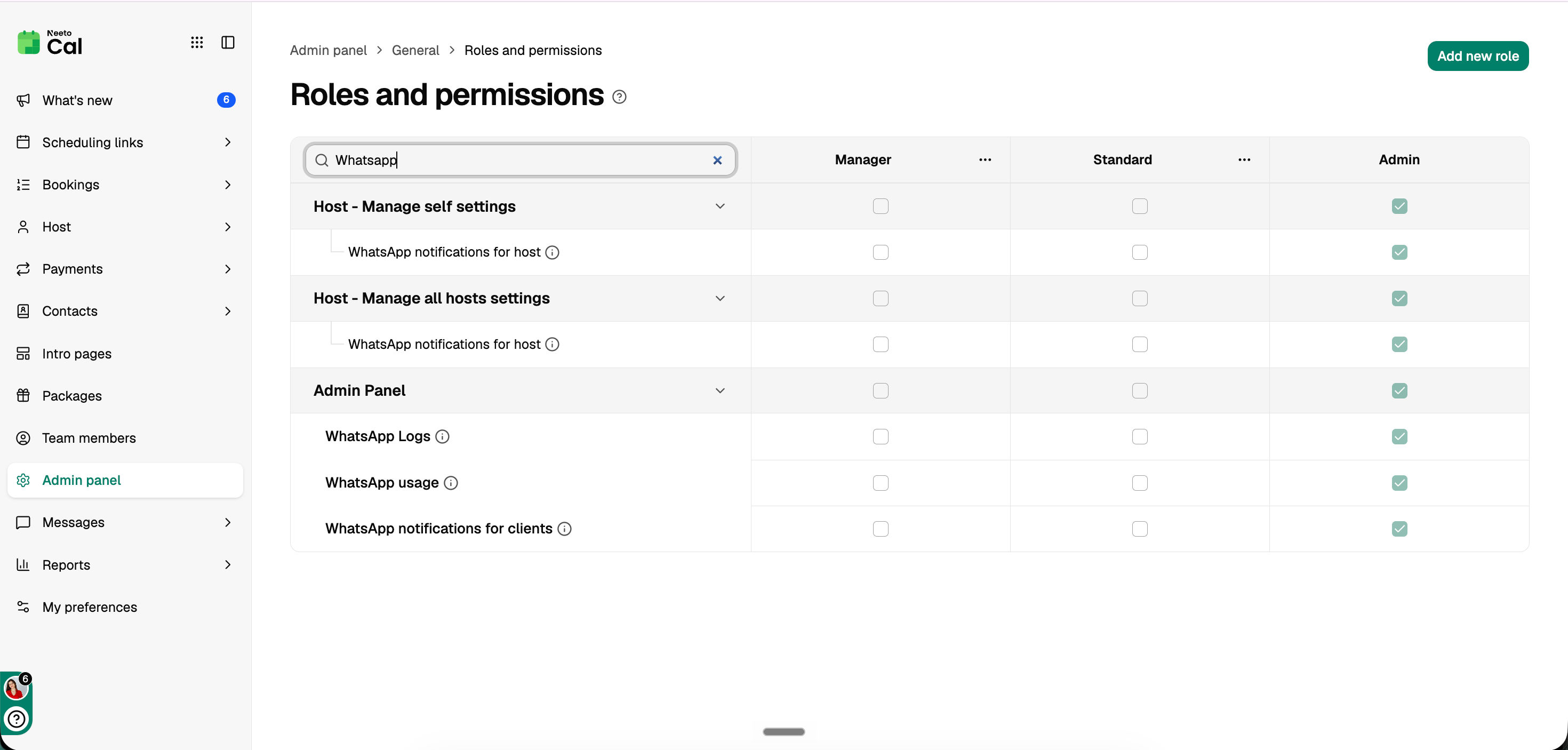
Members with the Manage WhatsApp permission in the admin panel can change client notifications and reminders.
Related articles: WhatsApp notifications for host · WhatsApp policy · WhatsApp usage and logs · Send SMS updates · WhatsApp pricing