

You can customize the meeting appearance globally for all the meetings where you are host. You can do this even if no calendar is selected under Where to add meetings. NeetoCal saves your layout and uses it as soon as you choose a calendar.
Customizing meeting appearance for all meetings where you are host
Go to Host tab.
Click on Self.
Under Calendar integrations, click Google Calendar, Outlook/Microsoft 365 Calendar, or iCloud Calendar.
Click on Manage Google Calendar button (or the button for your calendar).
Under Meeting appearance, click on Customize.
Click on Save changes.
Meeting color
For Google calendar bookings, you can set color for your meetings as they appear on your Google Calendar.
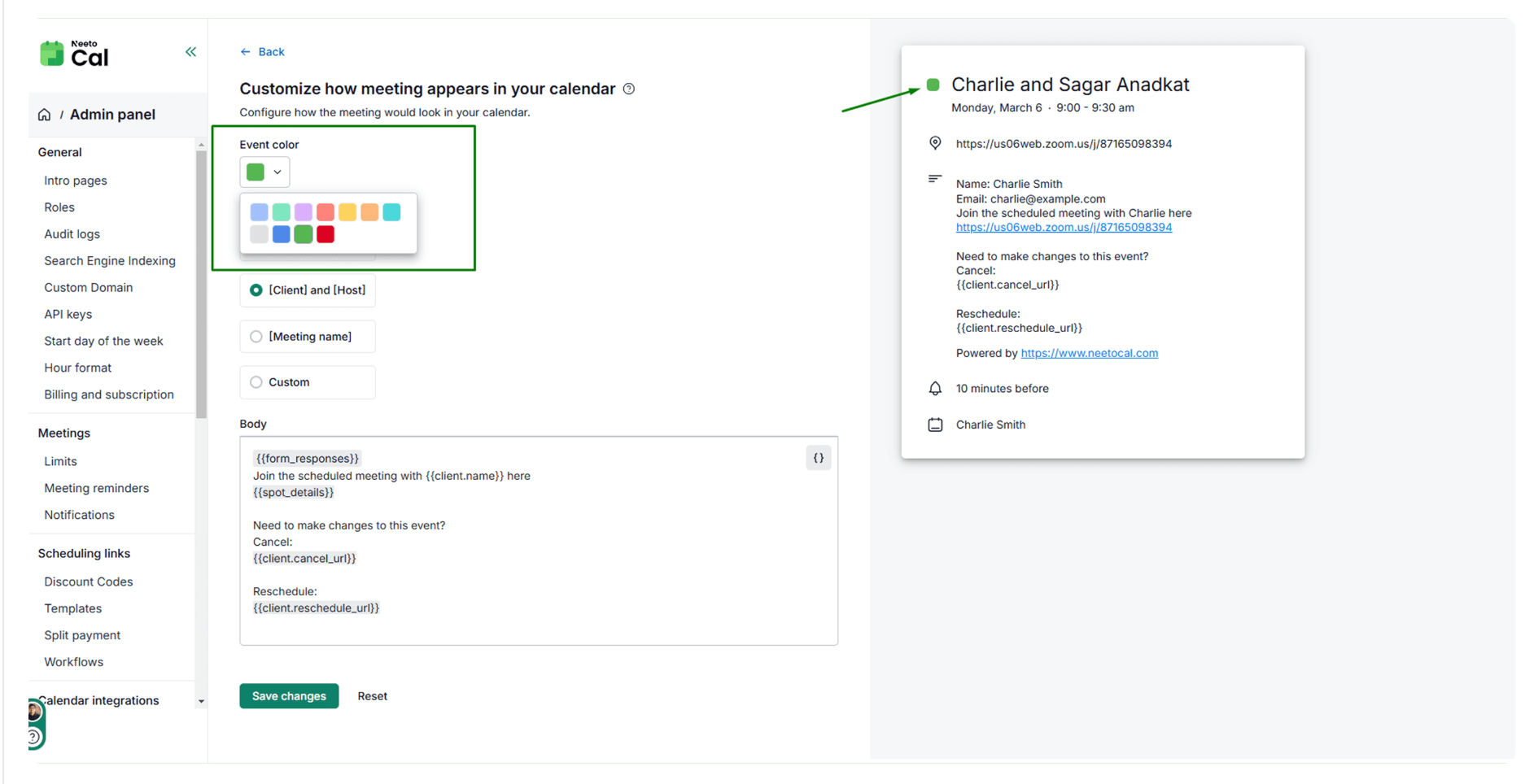
Pre-configured meeting names
NeetoCal offers several common meeting naming schemes.
[Host] and [Participant]. For example, "Oliver Smith and Eve."
[Participant] and [Host]. For example, "Eve and Oliver Smith."
[Meeting Name]. For example, "Instant meet with Oliver."
Custom meeting names
Select the Custom option to enter a unique meeting name.
Meeting Body
The Meeting body is the description shown when you open a calendar meeting. It can include the scheduling link, reschedule link etc. You can use dynamic variable to add details to the meeting.